Appearance
Theme editor
Press Customize on a theme to open it in the theme editor. Your storefront's pages are built from pieces you can add, remove, and rearrange — this page covers the basics.
Screen tour
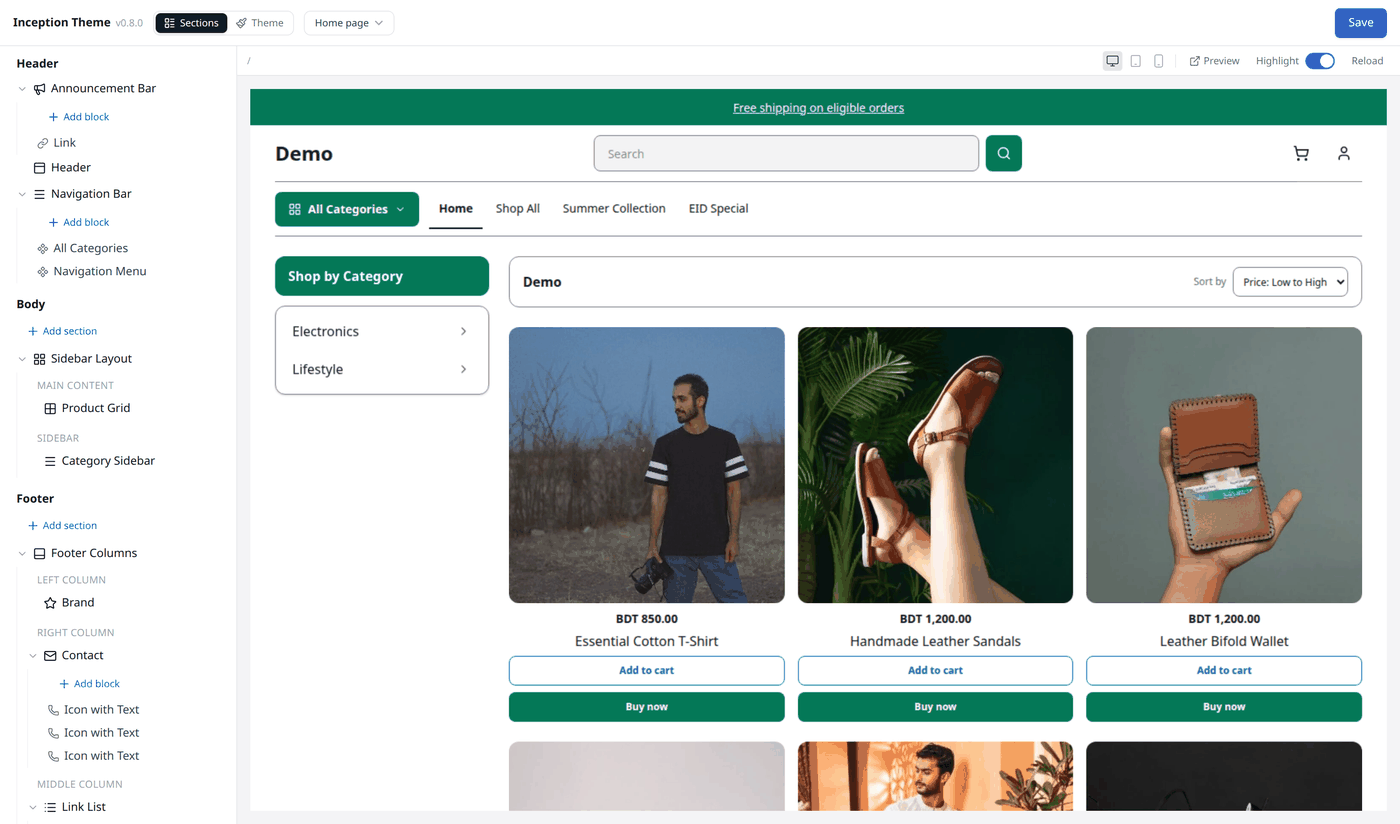
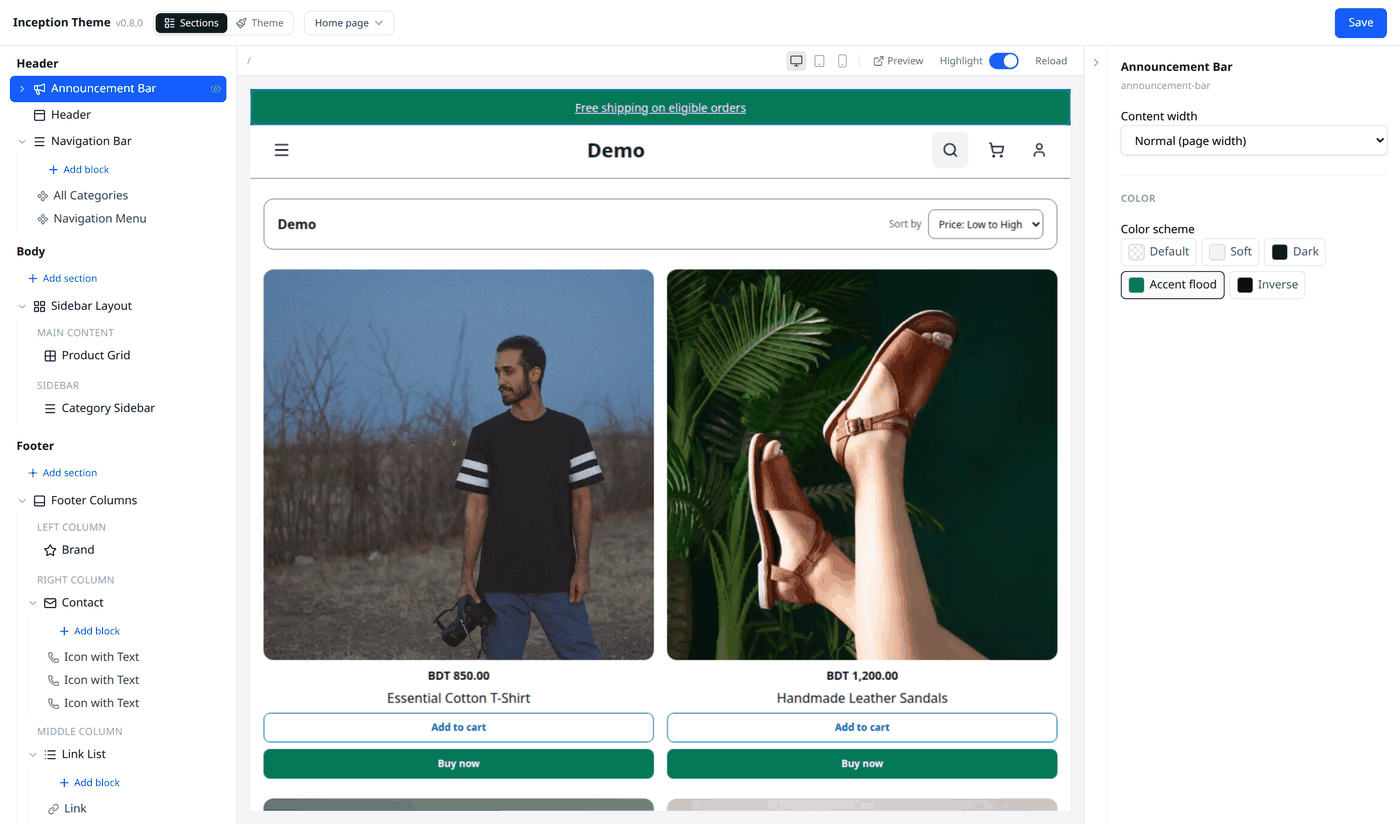
The theme editor has three side by side panels. On the left are the pieces of the page you are editing. In the middle is a live preview of that page. On the right are the settings for whatever piece you have selected.
Above the live preview, Preview opens the same page in a new tab, Highlight outlines each piece as you hover over it, and Reload refreshes the live preview.
Which page you are editing
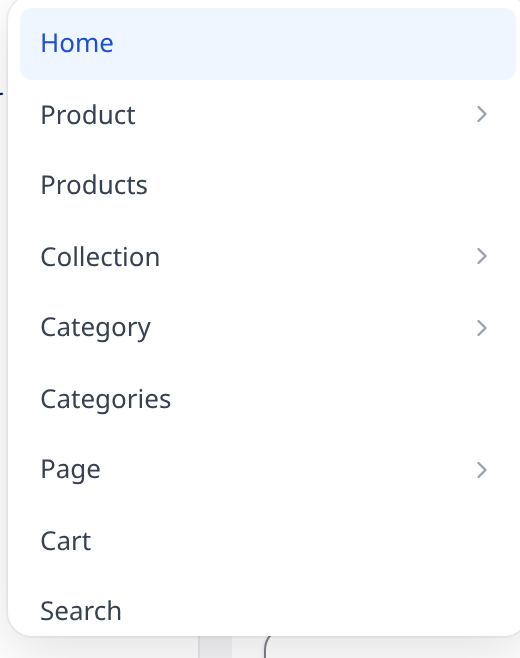
Press the page name at the top to switch — Home, Product, Category, and so on. Some pages, such as Product, let you build more than one version of the page — press Create template to start a new one.
Sections and blocks
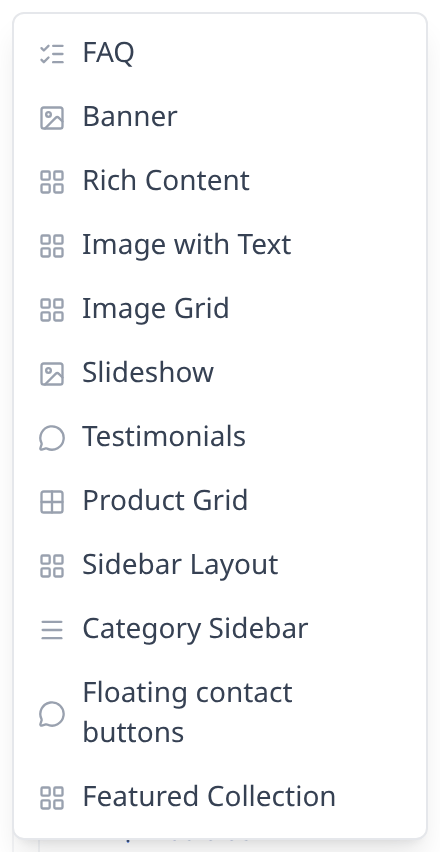
A page is built from Sections. Press Add section on the left panel to add one, drag the handle (⋮⋮) beside a section to reorder it, press the eye icon to hide it, or the X icon to remove it for good.
Inside a section are blocks — smaller pieces, such as a single image or a line of text. Press Add block to add one. You can reorder, hide, or remove it the same way as a section.
Not every section is available on every page. Some are only available on a single page, some on several, and some on every page you have. Blocks are the same — some belong to one specific section, and some can belong to multiple.
Some sections come with a fixed layout of labeled areas, each holding its own blocks. For example a footer might have left, middle, and right columns.
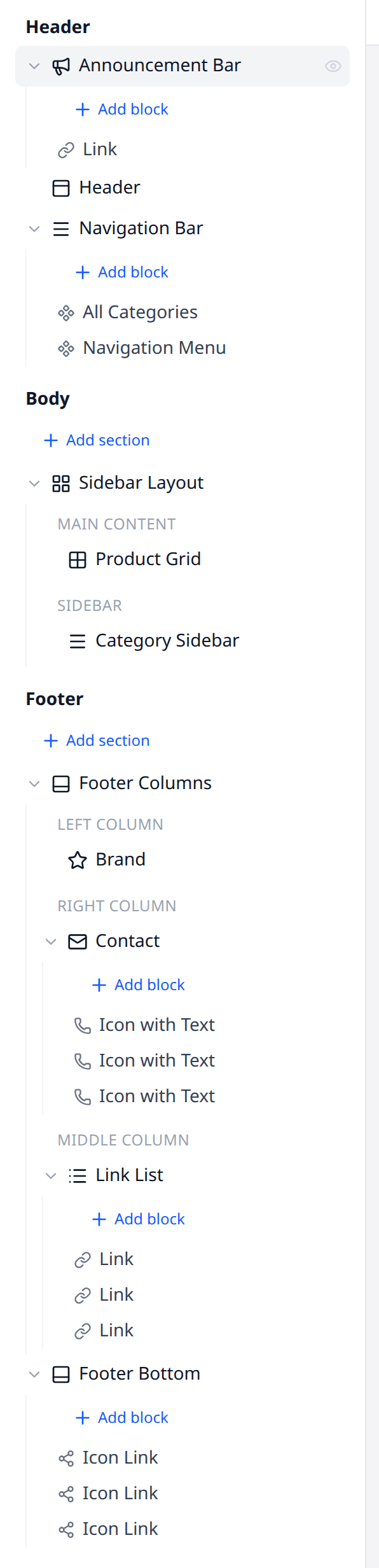
Removing a section or block cannot be undone
You cannot restore a section or block after you remove it. Removing a section or block also removes its settings and everything inside it.
Editing what you select
Press any section or block to open its settings on the right. What you can change depends on the piece — text, an image, a color, a linked product, and so on.
Theme settings
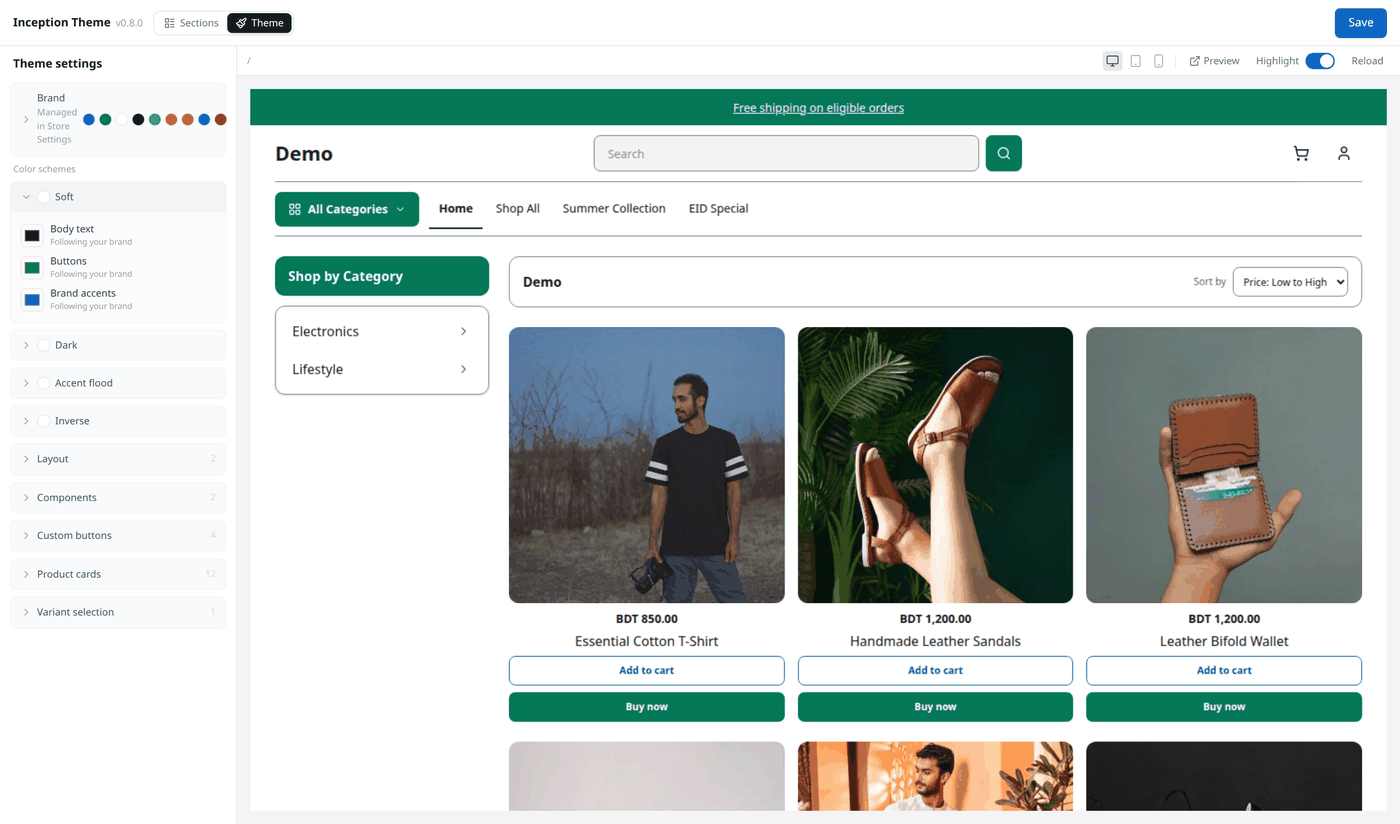
Press Theme at the top to open the theme settings panel.
Color schemes
Your theme offers a few named color schemes, such as a light one and a dark one. Any section can use them, as covered above.
Open a scheme to change its colors away from your brand's colors. Each color scheme starts out Following your brand until you change it.
If your brand colors change later
Biponix asks whether to keep each custom color as it is, or update it to follow your new brand colors.
Other appearance choices
A theme may offer more settings that apply across the whole theme — spacing, corner roundness, how product cards look, and similar choices. These settings vary from theme to theme.
Saving
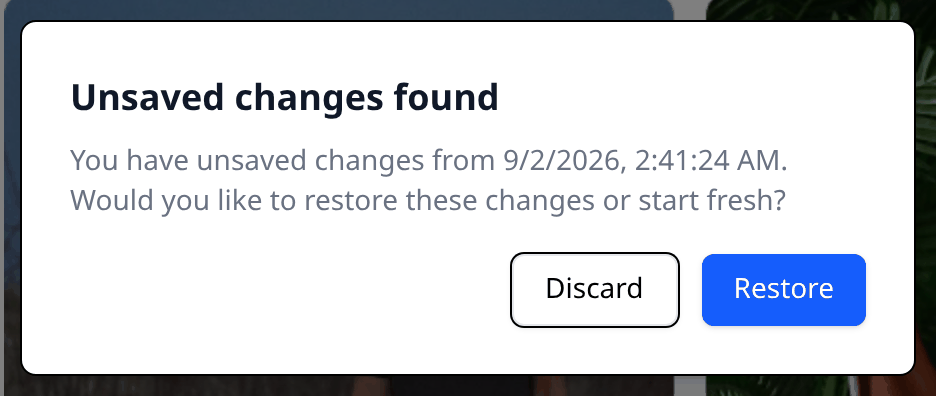
Your changes are drafted automatically as you work, but nothing changes on your storefront until you press Save. If you leave before saving, you can restore the changes next time you open the editor.