
Appearance
Team
Open Settings, then Members to see everyone with access to your dashboard. Pending invitations below Members lists invitations you have sent that have not been accepted yet.
Members
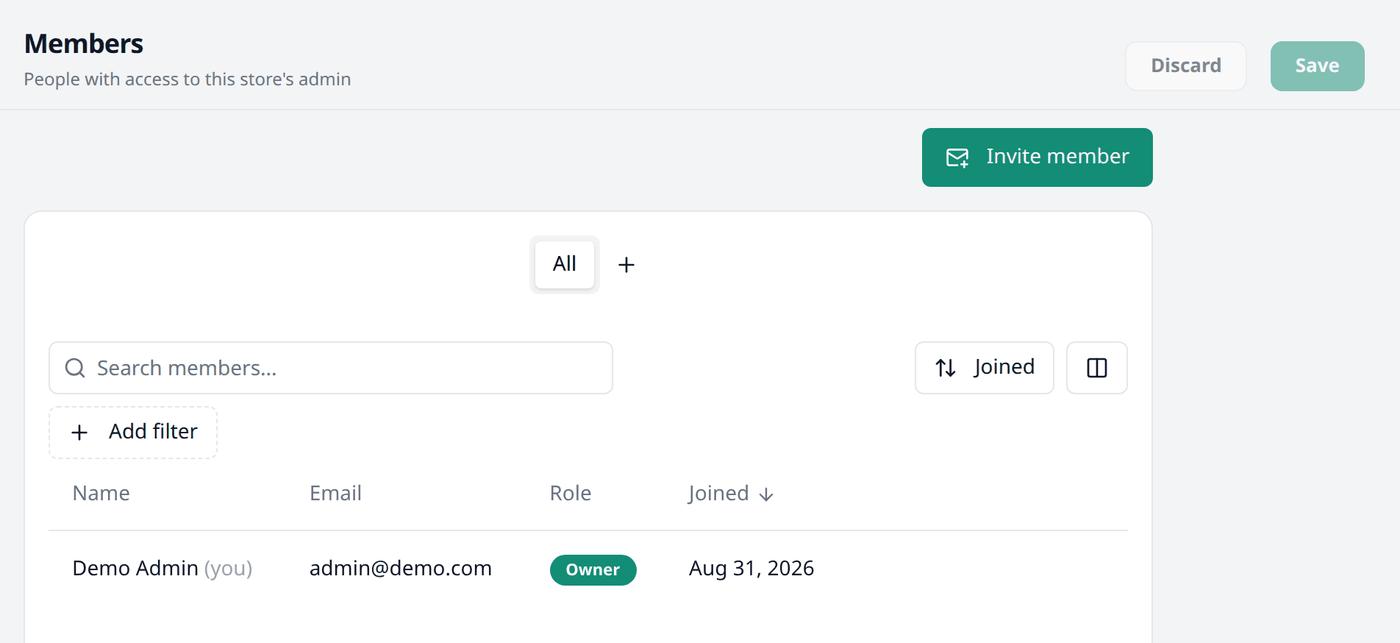
Each row shows a member's name, email, role, and the date they joined. The row marked (you) is your own account.
The person who created your shop is the Owner. Every shop has exactly one, and it cannot be changed or removed.
For the other members two actions are available:
- Change role lets you assign a new role to that member:
- Admin — has full access except team management
- Manager — can manage products, orders, and customers
- Editor — can view and edit products only
- Remove revokes that member's access to your store. This cannot be undone — invite them again if you want them back.
Inviting a member
Press Invite member, above the list.
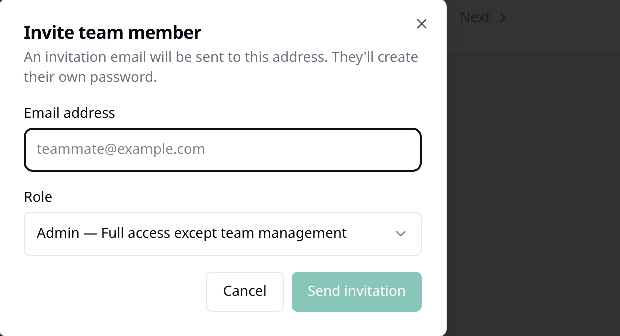
Fill in their email address, choose a role, and press Send invitation. An invitation email is then sent. They can simply accept the invitation to join your team.
Pending invitations
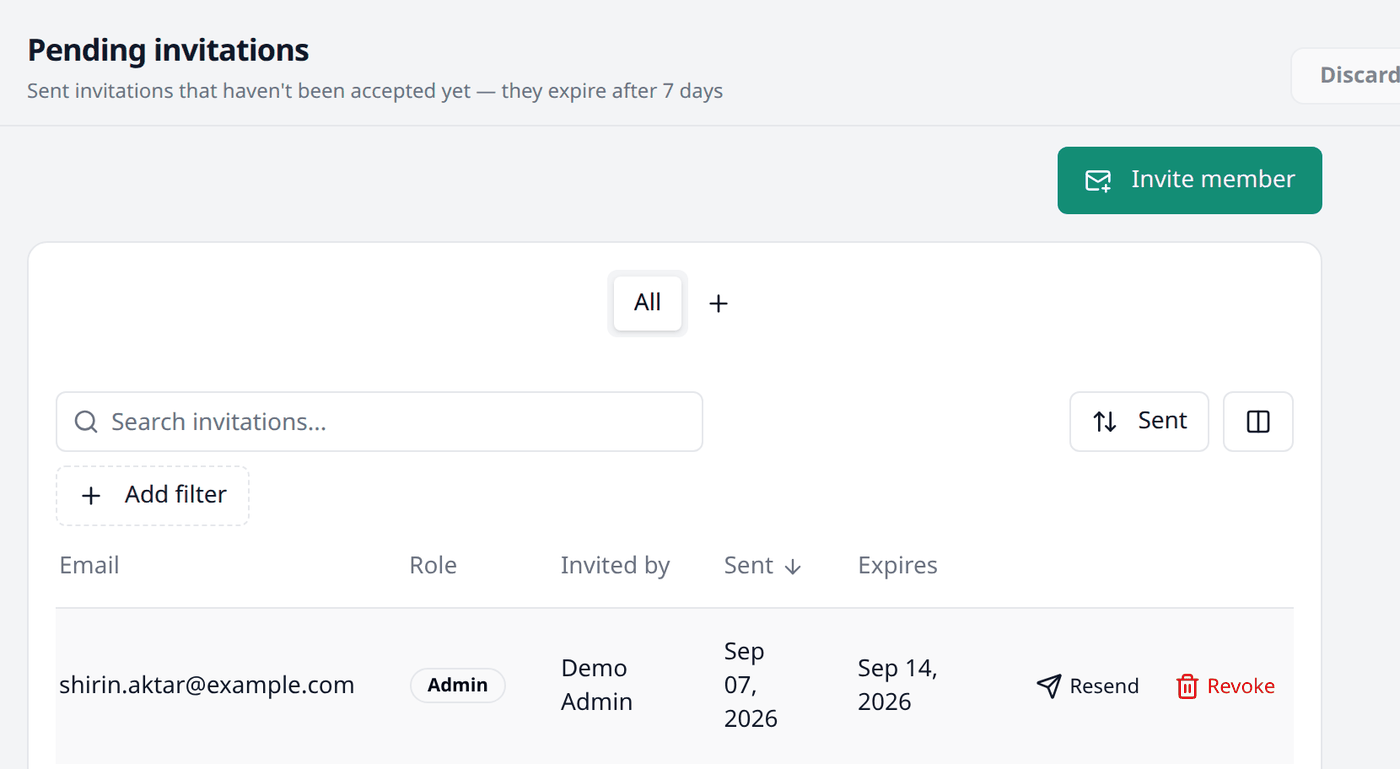
Each row shows who was invited, their role, who invited them, when the invitation was sent, and when it expires. An invitation expires in 7 days from the day you send it.
Two actions are available here:
- Resend sends a new invitation email.
- Revoke cancels the invitation.
Resending invalidates the previous invitation link
When you resend an invitation, the earlier email's link stops working. Only the newest email's link will work.
Saving
Changing a role and removing a member take effect right away — there is no separate Save for this page.