
Appearance
Collection
A collection is a group of products you put together yourself. Eid Offers. Flash Deals. Gifts for him. Anything you would want a shopper to browse as one set.
Open Collection from the menu to see the ones you have.
The collection list
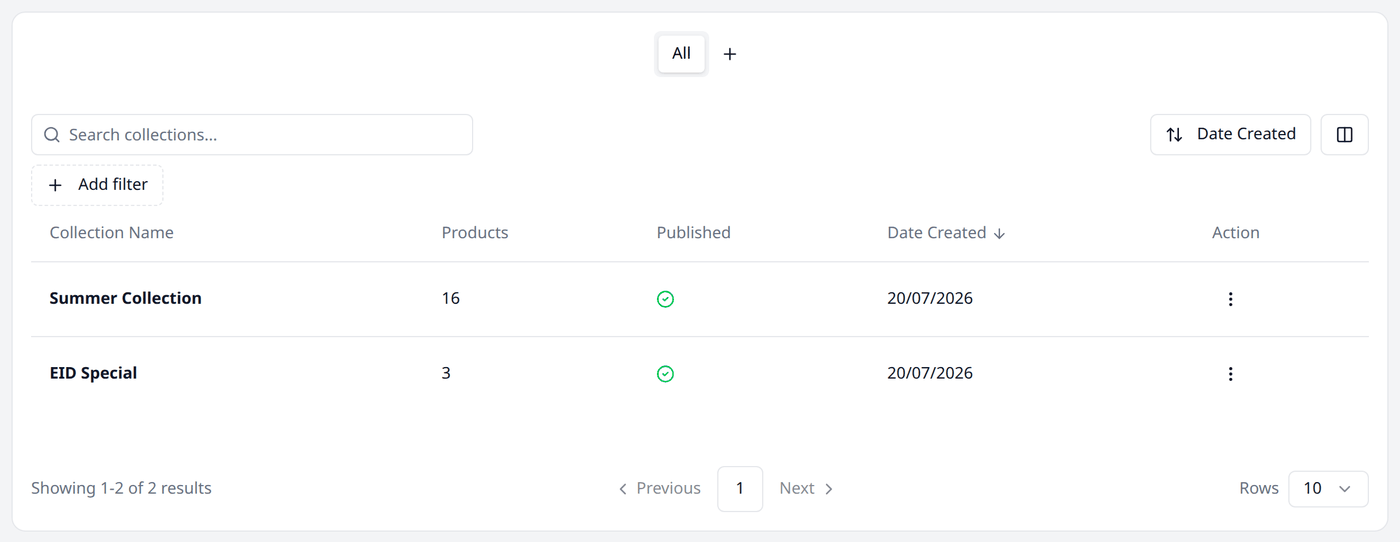
| Column | Description |
|---|---|
| Collection Name | Pressing it opens the collection's edit screen |
| Products | How many products are in the collection |
| Published | Whether the collection is live in your storefront |
| Date Created | When you created it |
| Action | Edit opens its edit screen, or Preview opens it in your storefront |
Search and filters
This list works the same way as every other list in your dashboard. Working with lists explains searching, filtering, sorting, columns and views in full.
The search box finds a collection by its name.
Here are the available filters for this screen:
- Published — filter the list by whether it is published or not.
- Date Created — a date range, to filter the list by when it was created.
Collection or category?
These two sound alike and behave nothing alike. The difference matters.
| Category | Collection | |
|---|---|---|
| How many per product | Exactly one, and it is required | As many as you like, or none |
| Shape | Hierarchical | Flat, no hierarchy |
| Where you set it | On the product itself | On the collection page |
| Web address | /categories/... | /collections/... |
A saree is in the Sarees category, because that is what it is. The same saree can also appear in Eid Offers and in New Arrivals, because that is how you want to sell it this month.
Pro tip
Use categories for what a product is, and collections for how you want to sell it. Categories stay the same for years. Collections change with the season.
Making a collection
Press Create Collection and fill in the form.
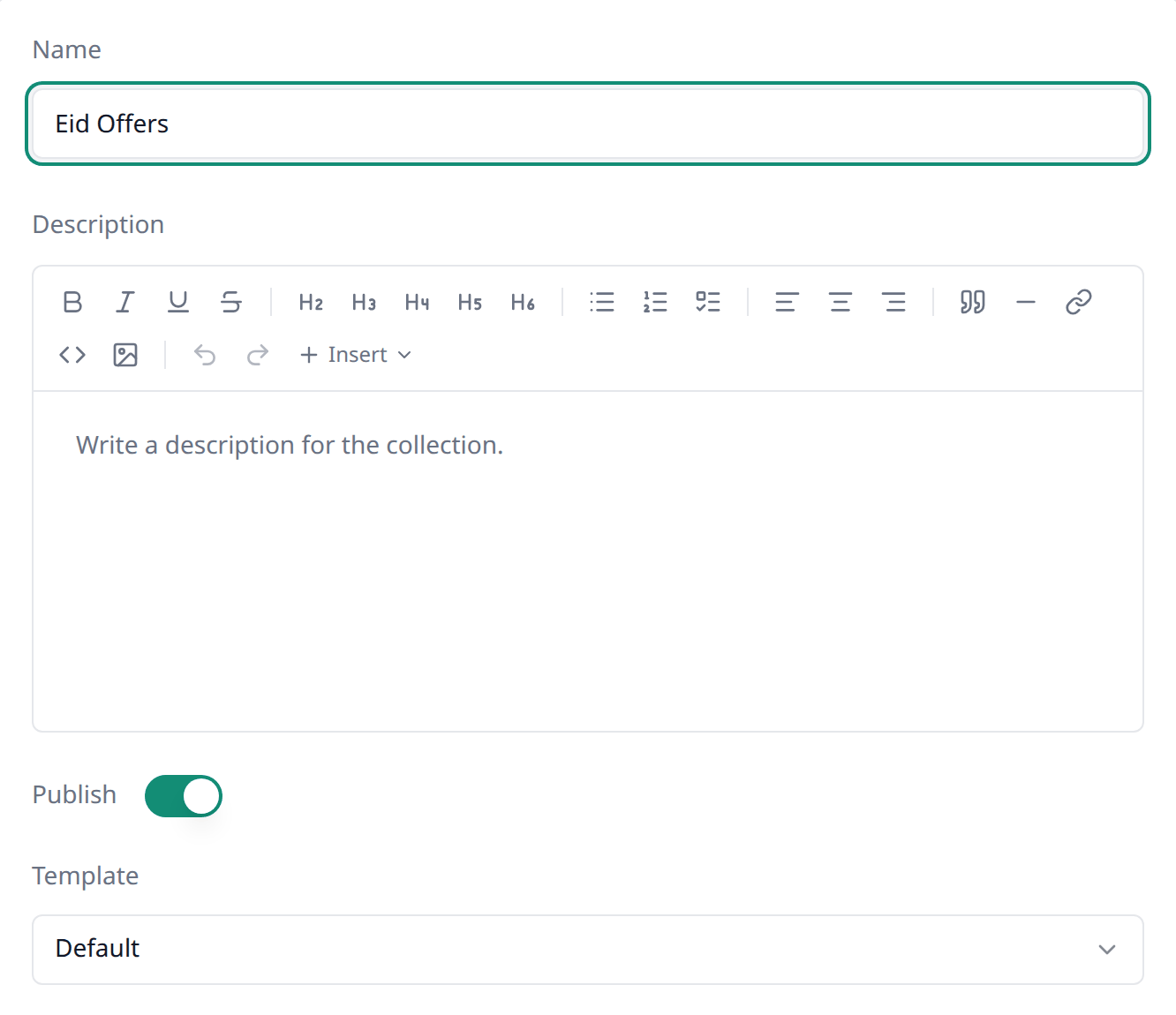
| Field | What to put in it |
|---|---|
| Name | What the group is called. This is the only thing you must fill in. |
| Description | A line or two shown on the collection's page. |
| Publish | On by default. Controls whether the collection is live in your storefront. |
| Template | The layout of the page. Leave it on Default unless told otherwise. |
There is also an Image box. You can choose a picture for the collection there.
One hundred collections per shop
You can add up to 100 collections to your shop. After that, Biponix will ask you to contact support.
Selecting products
Press Search products to add to this collection.
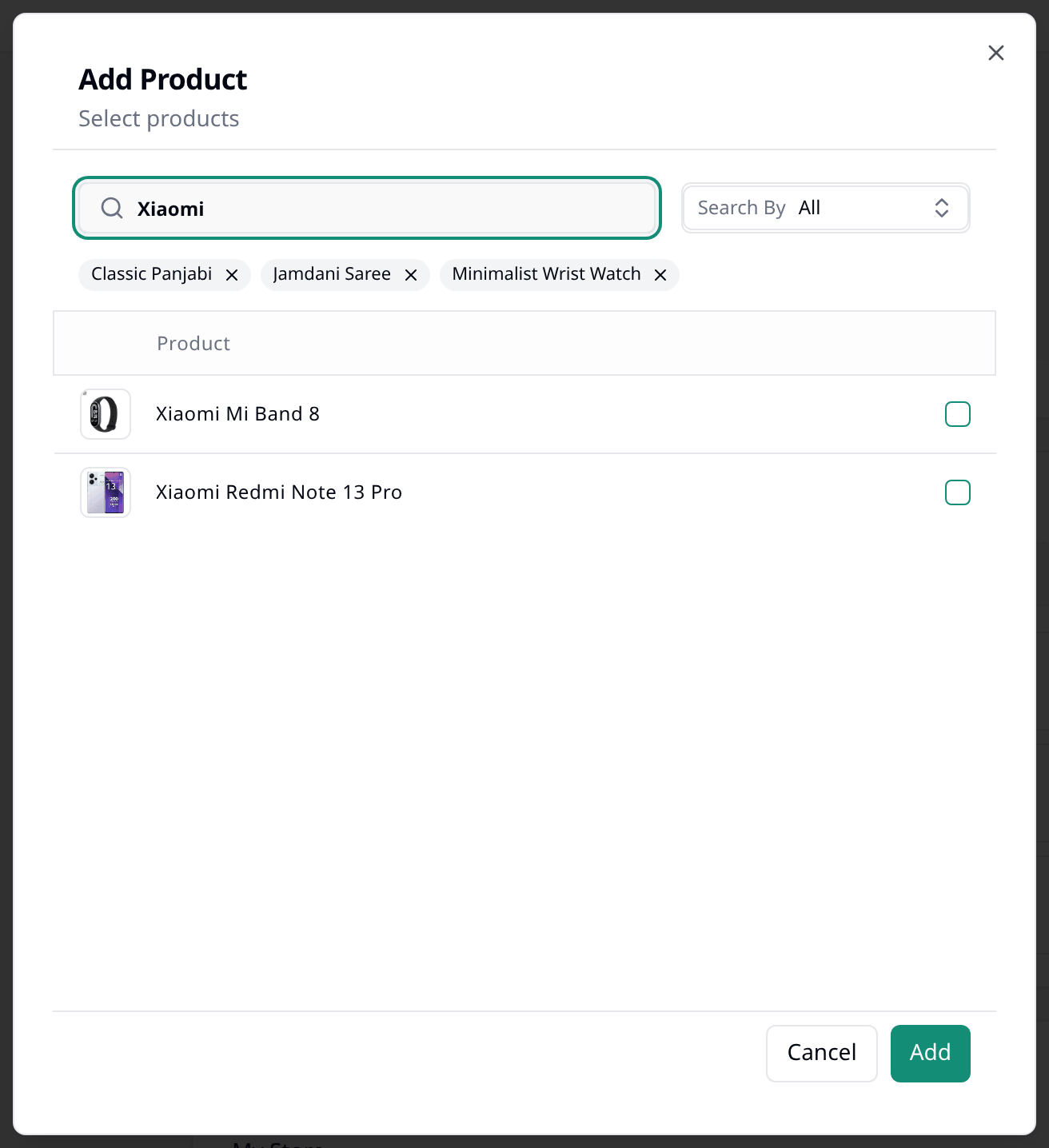
This opens a product selection window with a short list of products. Tick the ones you want, and press Add. You can type in the search box to find products that are not listed. Search By lets you find products only by Name or by SKU.
Whatever you have already chosen sits above the list as small tags, so you can see what is already in the collection while you add more.
Back on the form, your selected products are listed with a bin button beside each one, pressing that removes the product from the collection.
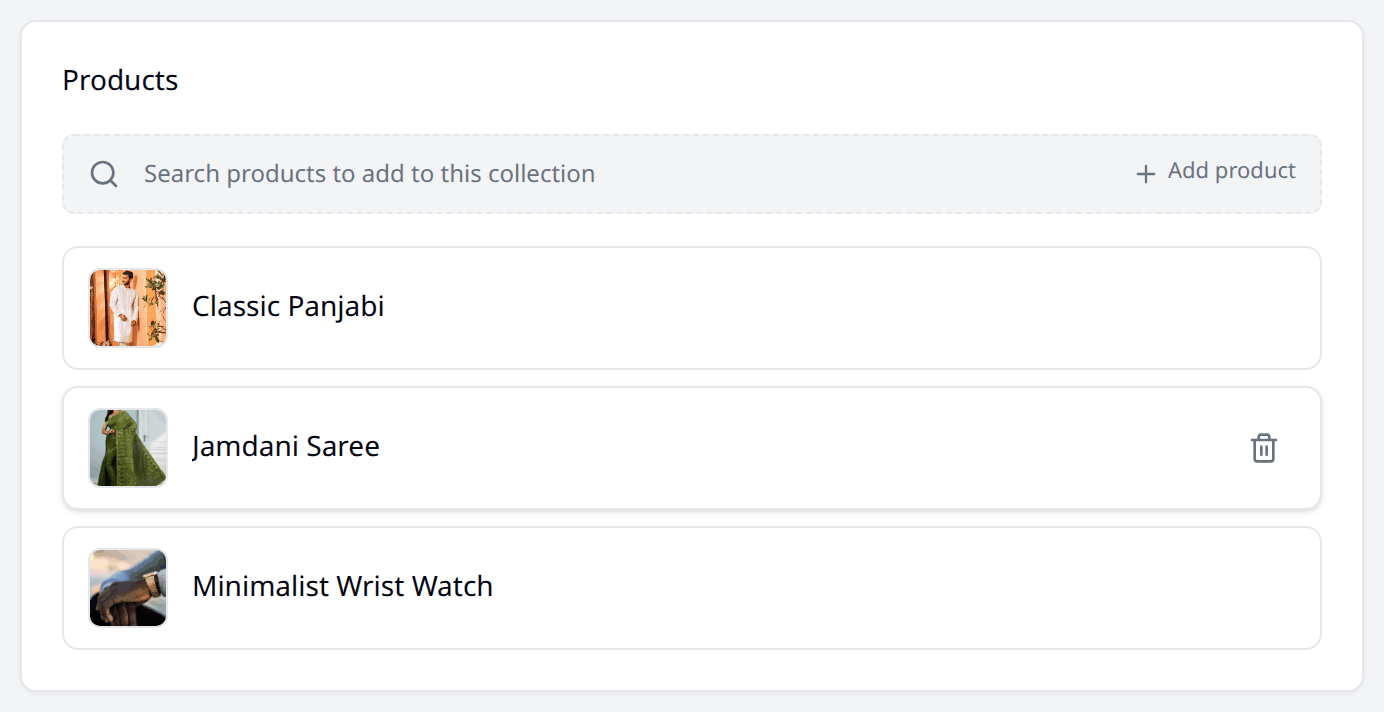
Nothing is kept until you press Save.
You cannot choose the order
Products in a collection are not draggable, you cannot sort them in the order you want. On your storefront the shopper sorts them the way they want. Cheapest first is the default sort order.
Search engine listing
The same block you met on a product: Page title, Meta description and URL and handle.
Biponix fills these in from the name and description. Page title and Meta description are the SEO fields for this collection. The URL and handle is the slug. You can keep the suggestions or change them as you like.
Where a collection appears
Each one gets its own page on your storefront, at your web address followed by /collections/ and the slug.
Nothing links to it on its own
There is no page or menu listing your collections, so making a collection is not enough for shoppers to find it. You decide where and how you link them on your storefront — add it to the menu, add a preview or banner to storefront's front page. More on that later.
Retiring a collection
Collections cannot be deleted.
To take one down, open it and turn Publish off. The collection disappears from your storefront, the products inside are untouched, and the collection stays in your list ready for next year.
Pro tip
A seasonal collection is worth keeping. Turn Eid Offers off when the season ends, then turn it back on next year and change the products, instead of building it again from the start.
What next
That is the whole Catalog part of your dashboard. Next comes selling: taking orders and getting them to your customers.