Appearance
Customers
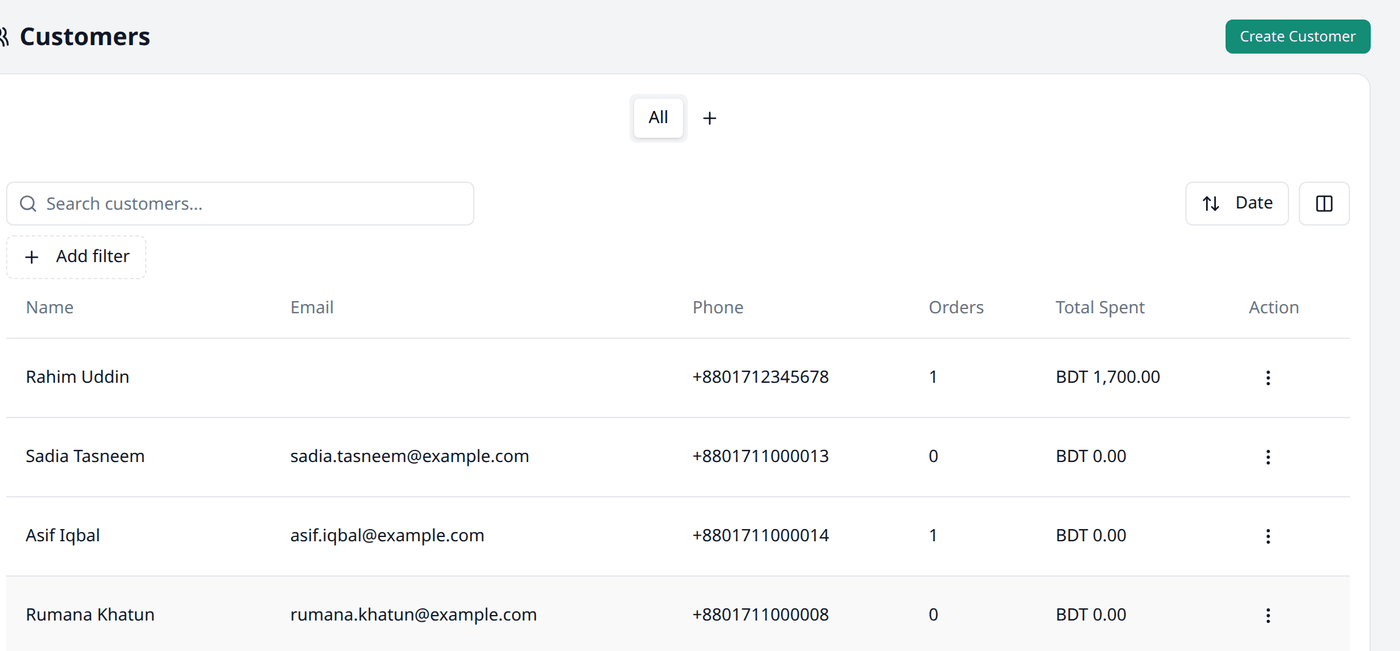
Open Customer from the menu. The screen you land on lists everyone who has bought from you, and anyone you have added yourself.
The list
Each row represents a customer.
| Column | Description |
|---|---|
| Name | The customer's name |
| Their email address | |
| Phone | Their phone number |
| Orders | How many orders they have placed |
| Total Spent | How much they have spent in your shop |
| Action | Opens Edit for that customer |
One more column, Date, is hidden by default. If you want you can unhide it from the columns button.
Search and filters
This list works the same way as every other list in your dashboard. Working with lists explains searching, filtering, sorting, columns and views in full.
Search helps you find a customer by their name, email, or phone.
Here are the available filters for this screen:
- Has Orders — filter customers by whether they have placed an order.
- Create Date — a date range for when the customer was added.
Creating a customer
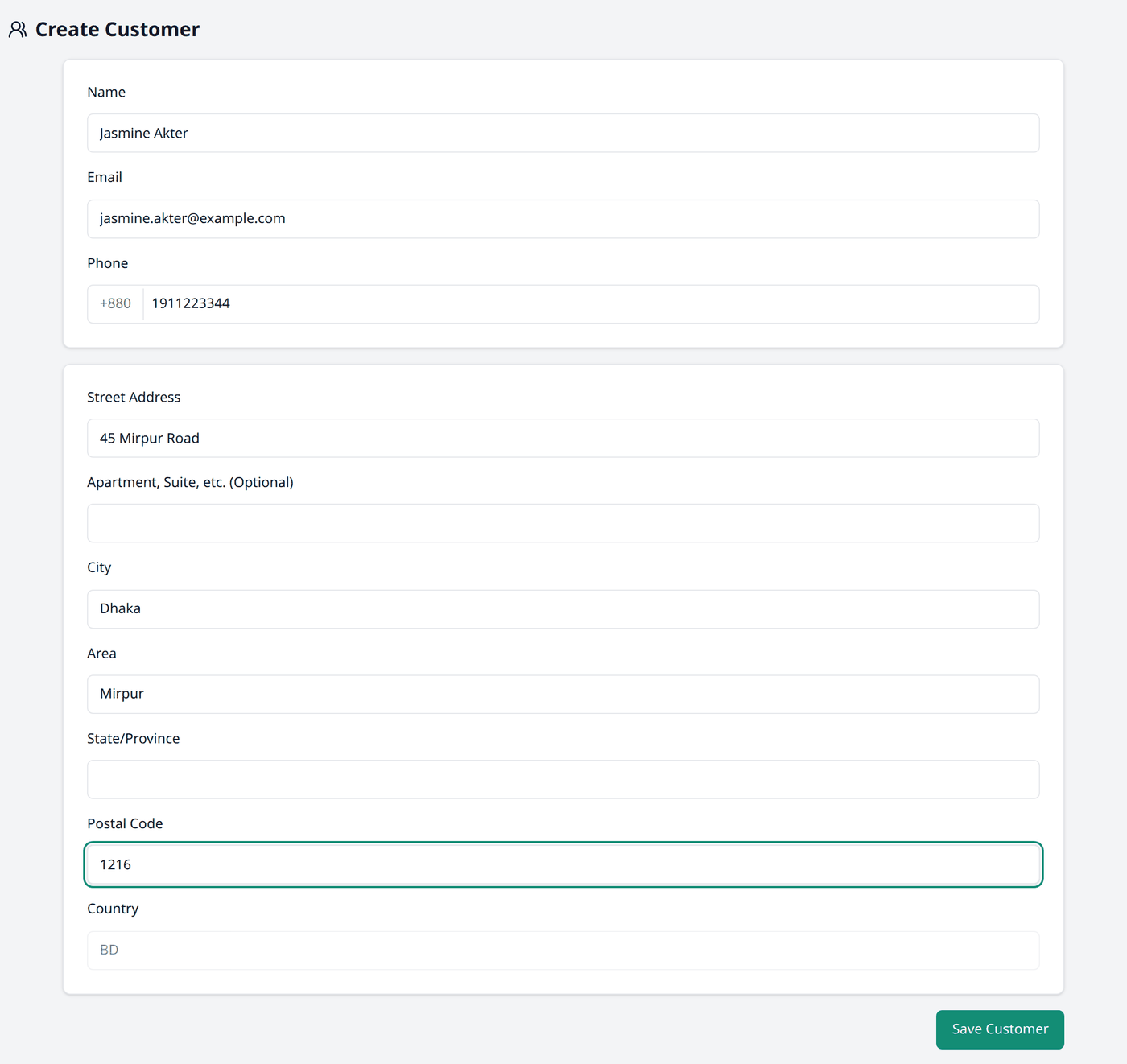
Press Create Customer, then fill the boxes:
- Name
- Email (optional)
- Phone
- Street Address, Apartment, Suite, etc. (Optional), City, Area, State/Province, and Postal Code
Press Save Customer.
Editing a customer
Open a customer to change their Name, Email, or Phone, then press Update Customer.
Addresses
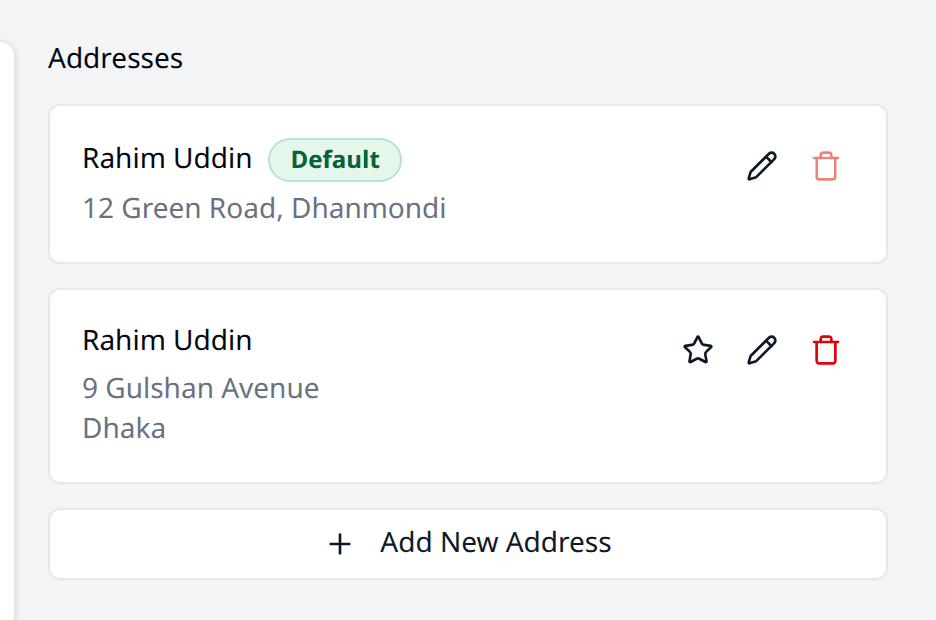
A customer can have more than one address. Press Add New Address on their page to add a new one, with the same fields as above plus a Set as default address switch.
One address is always the Default, marked by a badge. Press the star icon on a different address to make that one the default instead. The current default cannot be deleted directly — make another address the default first, then delete it.