
Appearance
Rich text editor
This is the text editor you see everywhere you can write a long, descriptive, or complex piece of content. Such as, description for a product, category, or collection, or a page's content. This page explains what the rich text editor can do and how to use it.
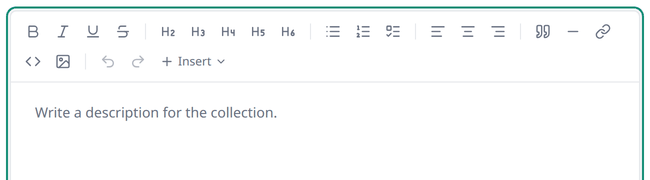
What is available
The rich text editor has various formatting and editing options that make content writing easy. Here is the full list of them:
- Bold, Italic, Underline, Strikethrough — basic text formatting.
- Heading 2 to Heading 6 — turns the line into a heading, so you can add a title to a section.
- Bullet list, Numbered list, Task list — add a list of items. The last one adds a checkbox in front of each item.
- Align left, Align center, Align right — text alignment settings.
- Blockquote — turns the line into a quote.
- Horizontal rule — adds a separator between sections.
- Inline code — formats the line as code, shown in a different typeface.
- Link — lets you add a link text, or turns selected text into a link.
- Insert image — opens the Media picker to insert an image straight into the editor.
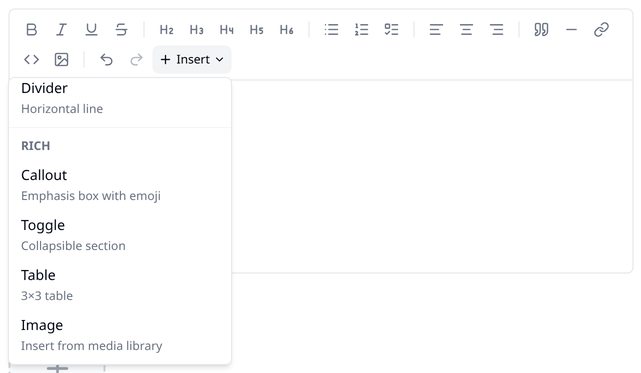
- Callout — a text box with an emoji, for making a note or a tip stand out from the rest of the content.
- Toggle — an accordion, click to expand, add content inside. The bulleted line is the title, rest is the body.
- Table — inserts a 3×3 table. You can add or remove rows and columns as you need.
The toolbar
The toolbar at the top of the editor holds everything you can do. It has a shortcut for most of these options, plus a few actions of its own.
- Shortcuts for Bold, Italic, Underline, Strikethrough, Heading 2 to Heading 6, Bullet list, Numbered list, Task list, Align left, Align center, Align right, Blockquote, Horizontal rule, Inline code, Link, and Insert image.
- Undo and Redo.
- Insert button, which opens a dropdown menu with many of the same options.
Some options are Insert-only
The Callout, Toggle, and Table options are only accessible from the Insert menu.
Pro tip
The / key opens this same menu with keyboard navigation, so you can change the formatting or insert elements without reaching for the toolbar.
Selecting text shows more
Selecting text makes a short toolbar appear above it. It carries the formatting options, plus text colour and highlighting.
Moving a line
Hovering over a line makes a small draggable handle (⋮⋮) appear to its left. Drag the handle up or down to move that line to a different position in the editor.
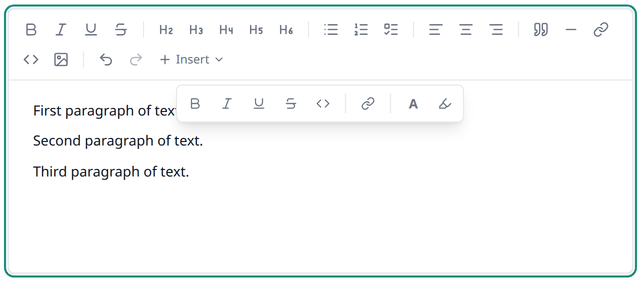
Grabbing the handle also brings up the short toolbar described above, which you can use to format that line.
Rich text editor has other versions
Biponix also provides lighter versions of the editor for simpler content. For example, the reassurance text under your storefront's Place order button uses this same editor, but has fewer options.