
Appearance
Purchase tracking audit
Open Settings, then Analytics & tracking, then press Purchase tracking audit under Tracking tools to open this page.
Every sale made on your storefront or through a sales funnel is a purchase event, which gets reported to the analytics providers you installed — such as Google Analytics or Meta. This is necessary for the analytics providers to show correct and up to date analytics. This page lists the purchase events that Biponix attempted to report to the providers. The most important information on this page is whether a report was successful, and if not, the reason behind it.
Pro tip
You do not need to check this page often. Come here if your analytics numbers seem wrong, or after installing a new analytics provider, to make sure your sales are being reported.
The list
| Column | Description |
|---|---|
| Order # | Which order this event is for |
| Timing | Order created or Order confirmed — the action that recorded the event, matching your Purchase conversion timing choice |
| Status | Pending (waiting to be sent), Dispatching (being sent right now), Sent (reported your analytics provider), Failed (it was not reported), or Skipped (marked not to be reported) |
| Value | The order's total, the amount reported |
| Event time | When the event was recorded |
| Attempts | How many times Biponix has tried to report |
| Sent | When it was reported |
| Last error | Why it failed, only applicable to events that failed |
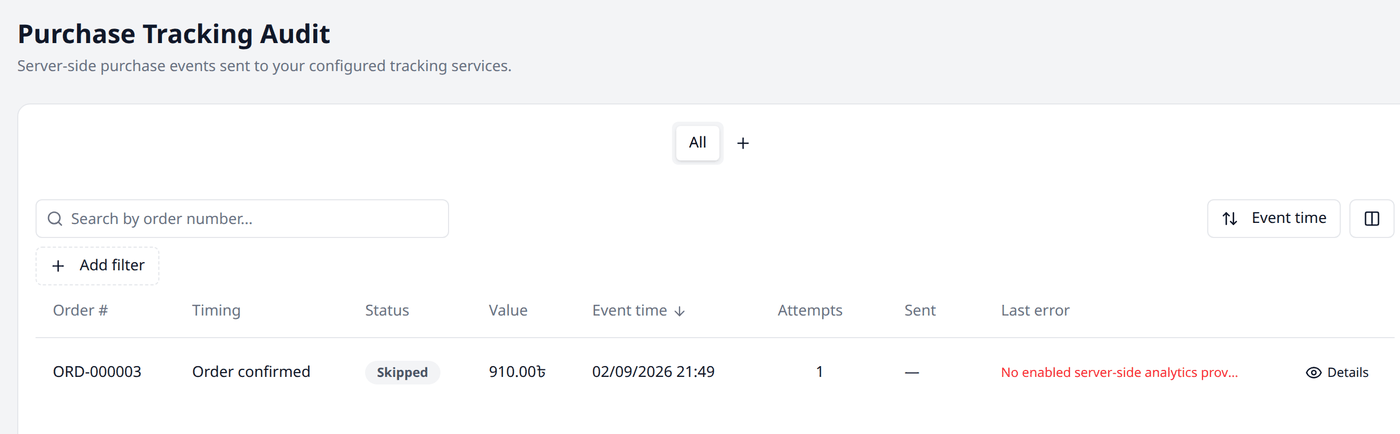
Nothing installed yet?
Seeing Failed or Skipped events with no analytics provider installed is expected — there is none to report to yet. Once you install a provider under Analytics providers, new events are reported to it.
Search and filters
This list works the same way as every other list in your dashboard. Working with lists explains searching, filtering, sorting, columns and views in full.
Search lets you find an event by its order number.
Here are the available filters for this screen:
- Status — filter the list by whether events are Pending, Dispatching, Sent, Failed, or Skipped.
- Timing — only events recorded by Order created or Order confirmed.
- Event time — a date range to filter by when events were recorded.
Details
Press Details on a row to see all the information Biponix has for that event: which order it belongs to, an overview of the attempts, and the technical details. These include information like the web address the sale came from, the tracking values captured, and other event related data.
Retry and Skip
Some events can have two more actions, depending on their status:
- Retry appears on an event that has failed, or is stuck on dispatching. Press it for Biponix to try reporting that event again.
- Skip appears on a Pending or Failed event. Press it to prevent Biponix from trying again — useful for a test order, or one that does not need to be reported.