Appearance
Media picker
Media picker lets you choose or add pictures and videos where you need to. You will find it in multiple places across your dashboard — choosing a product's photos, a category's banner, or a collection's banner. You might have to interact with it frequently, so it is worth having a proper understanding of it.
Searching
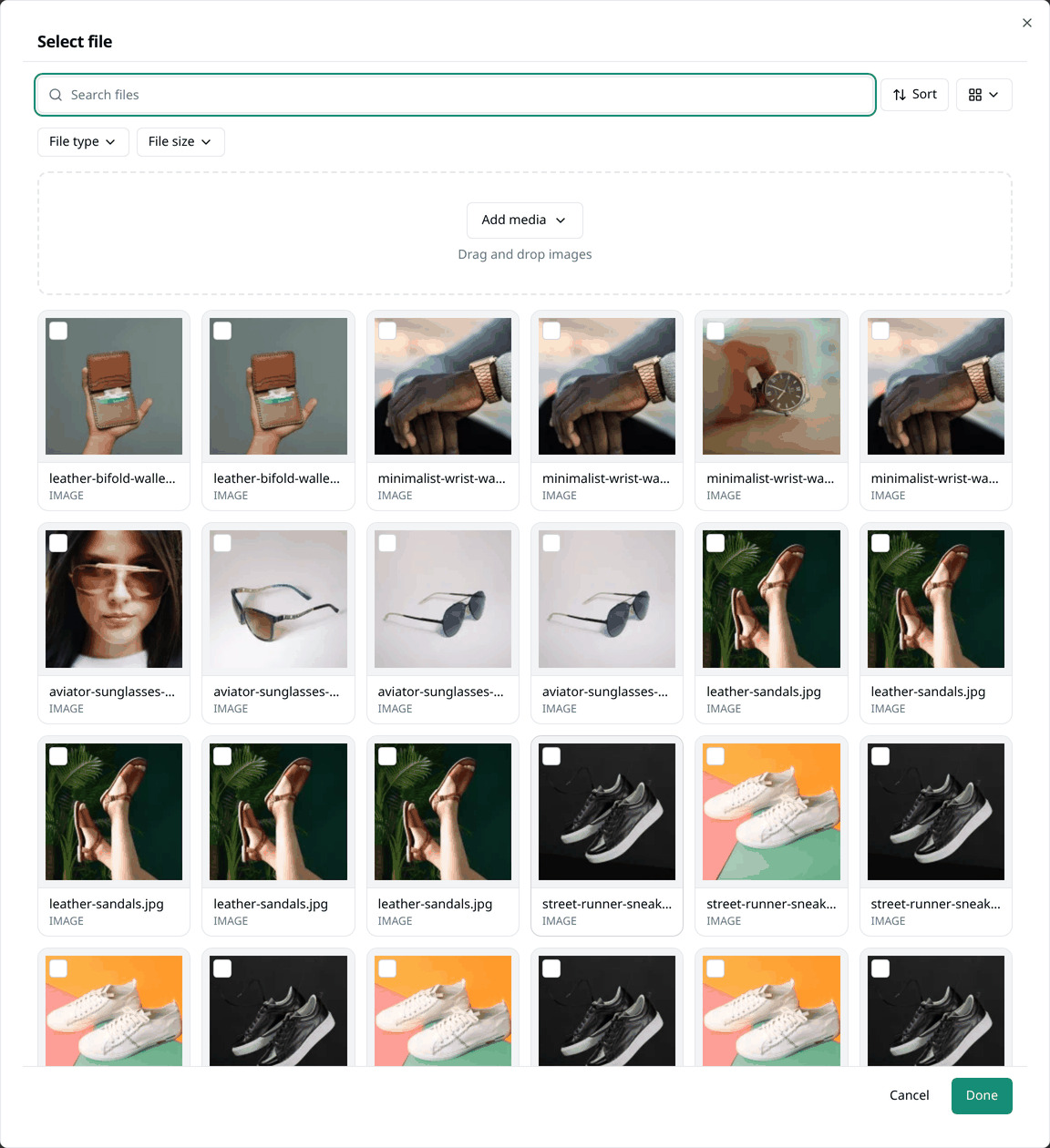
Type in the search box to find a file. You can also filter the files based on:
- File type — Images or Videos
- File size — Under 1MB, 1-10MB, or Over 10MB
Selecting
The picker's behaviour changes a little depending on where you interact with it.
- In some places it lets you pick multiple media files — a product's photo gallery, for example.
- In other places it only lets you pick a single media file, and selecting one replaces whichever was selected before it.
Press Done to confirm your choice. Cancel, or the × button at the top corner of the window, discards the changes and closes it instead.
Adding something new
Media picker also lets you add new media files. Press Add media, which gives you two options to add a media file:
- Upload files — choose one or more files from your device. You can also drag files from your device onto the window to upload them.
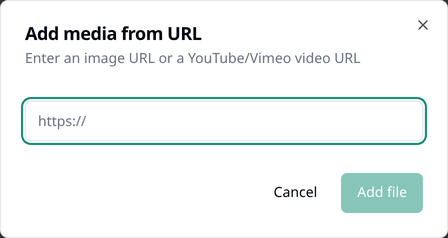
- Add from URL — paste a media file's link to add it. This works for a direct picture link, or a YouTube or Vimeo video link.