
Appearance
Store details
This is where you tell Biponix who you are: what your shop is called, where it is, and how customers can reach you.
Open Settings from the menu on the left, then choose General. The page is split into four parts.
Store details
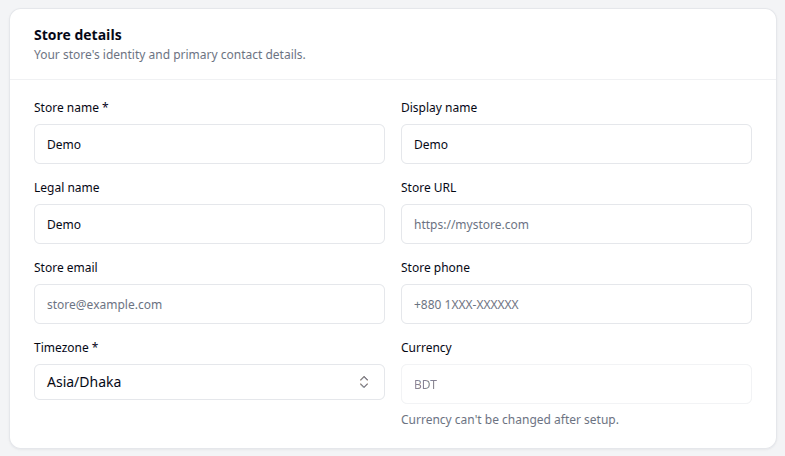
Only two things here are required: your Store name and your Timezone.
| Field | What to put in it |
|---|---|
| Store name | What your shop is called. |
| Display name | The name customers see on your storefront. Leave it empty to use your store name. |
| Legal name | Your official business name. This is the one printed on receipts and invoices. |
| Store URL | Your shop's web address. |
| Store email | An email address for your shop. |
| Store phone | A phone number for your shop. |
| Timezone | Where you are, so order times match your clock. |
Currency cannot be changed
Your currency was set when your store was created, and it cannot be changed afterwards. The field is there so you can see it, but it is locked. If it is wrong, speak to the Biponix team rather than trying to work around it.
Address
Your shop's real-world address: Address line 1 and line 2, City, State, Postal code and Country.
Store language
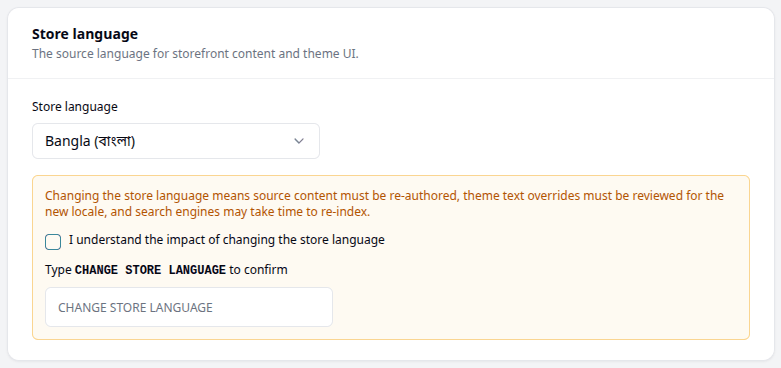
This sets the language your shop is written in.
You can change it, but Biponix will ask you twice before it lets you — you have to tick a box and type CHANGE STORE LANGUAGE to confirm. That is on purpose, because changing it is a bigger job than it looks:
- Your existing text is not translated for you. Anything you have already written has to be written again in the new language.
- Any wording you changed yourself in your shop's design needs checking.
- Google and other search engines take a while to catch up.
Pro tip
Settle your store language now, before you set up anything else. Everything you write from here — your pages, your product descriptions, your emails — is written in it. Choosing now takes a moment. Changing it later means writing all of that again.
Contact & social
These are the ways customers can reach you, and they can be shown on your storefront.
Support email and Support phone are for customers who need help. They can be different from your store email and phone.
Below those you can add your WhatsApp number, Facebook page, Instagram handle, LinkedIn URL and Twitter URL. Fill in the ones you actually use — an empty box is better than one nobody watches.
Saving
Your changes are not kept until you press Save, at the top right of the page. If you change your mind, Discard puts everything back.
What next
Once your details are in, move on to Brand to add your logo and colours.