
Appearance
Order processing
The first thing to do to process an order is to open it. An order can be opened two ways, and both show the exact same thing — pick whichever you prefer.
Press the button at the end of its row, under Action, and choose View to open it on its own page. Or press the order's number instead, this opens the same form in a popup window over the Orders list.
What a new order looks like
A new order arrives with two labels on it:
- Needs Confirmation — the order is not confirmed yet.
- Unpaid — no payment has been made yet. With cash on delivery this is normal and expected.
Biponix sets aside what the customer ordered straight away. The ordered items are counted as Reserved, so you cannot accidentally sell the same shirt to two people.
Confirming
Confirming means you have checked the order and are going ahead with it. It is the first thing you do with every order.
For a cash on delivery shop this is also the moment you would normally call the customer to check if the order is genuine and the customer information is right.
Press Confirm Order at the top of the form to confirm it. The order changes from Needs Confirmation to Ready to Ship, and the number on the Orders menu badge goes down by one.
Editing what is on the order
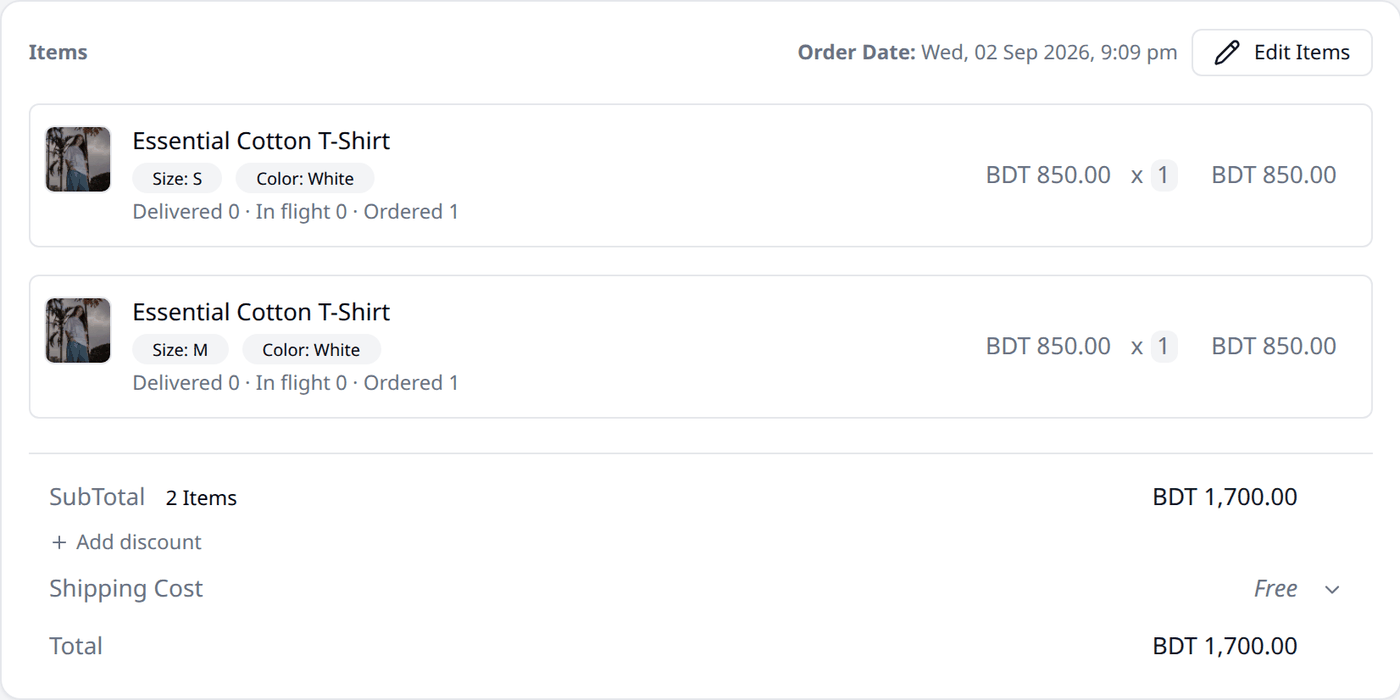
Everything below lives on the Items card, at the top of the form.
Edit Items lets you add products, remove them, or change their quantity on the order. Adding uses the same product picker you already know from creating an order yourself.
Some changes stop being possible once shipping starts
You cannot remove a line if part of its quantity has already shipped. You also cannot reduce a quantity below what has shipped, or change it at all once that line has been delivered. Once delivery has started, Close Remaining is the tool for settling what did not go out.
You can keep editing items until the order is completed or cancelled. Once it is, Edit Items disappears.
Add discount works exactly as it does when you create an order — Apply coupon for a code, Add custom discount for an amount you decide. You can change discounts at any point, even after it has shipped.
Shipping Cost also stays editable at any point, with no restriction at all — even on a cancelled order.
The activity log
Every change to the order — confirming it, editing it, a shipment moving, a payment landing — is recorded here automatically, with who did it and when. Before anything has happened, it reads No activity yet.
You can also leave notes for your team in here: type into the box and press Comment, up to 2000 characters. This is never shown to the customer — it is for your team only. You can edit or delete a comment you wrote.
Customer notes
Customer Notes is the same note that a shopper writes at checkout, or you write for them when creating an order. It prints on the Receipt, and stays editable at any point, even on a cancelled order.
The customer and their address
Press Edit Address to change the order's destination. It is the same address form used everywhere else in Biponix, and it stays editable unless the order is cancelled.
Below that sits the Customer Fraud Check — a trust score built from this customer's delivery history with different couriers, rated Excellent, Good, Moderate, Risky, or New. Press the refresh icon to check again.
Tags
Edit Tags adds or removes labels on the order, for your own tracking. Changes made here are saved automatically. Press Done to close the window. You can add up to ten.
Cancelling, reopening and archiving
These live under the three-dot button, at the top of the form.
Cancel Order requires a cancellation reason, then releases whatever stock was being held for it. You can cancel it right up until part of it is delivered, or a courier picks it up.
Reopen puts a cancelled order back where it was and holds its stock again, as long as the order has not been archived.
Archive removes a finished order from your Orders list without deleting it — you can still find it by filtering, the same way an archived product does. You can only archive a completed or cancelled order; Unarchive brings it back.
Close Remaining
Sometimes part of an order is delivered and the remaining part cannot be delivered — a courier cannot locate an address, or the customer only accepts part of it. Close Remaining requires a closing reason, then updates each item's quantity to how many were delivered, releases the stock for the rest, and completes the order. It becomes available after at least one part of the order has been delivered.
Printing
Press Print for a Receipt, or Copy Link to get a link to that same receipt, which you can send to the customer directly.