
Appearance
Notifications
Open Settings, then Notifications. Everything here is already switched on. Come here to turn something off, not to turn things on.
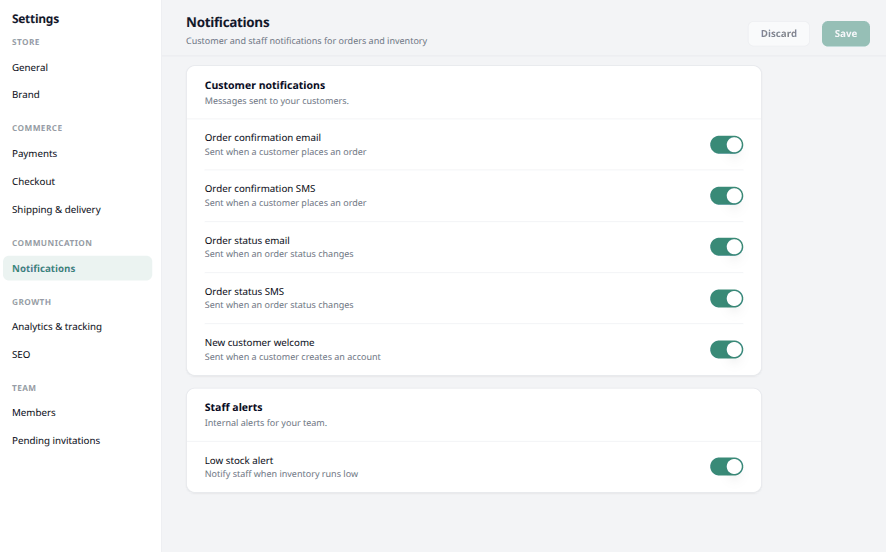
Customer notifications
These are the messages sent to the people buying from you.
| Switch | When it is sent |
|---|---|
| Order confirmation email | When a customer places an order |
| Order confirmation SMS | When a customer places an order |
| Order status email | When an order status changes |
| Order status SMS | When an order status changes |
| New customer welcome | When a customer creates an account |
Not all notifications are available right now
The order confirmation email and the order status email are the ones that reach your customers today. The rest are not available right now.
The order confirmation is the one that matters most. It is your customer's receipt and their proof the order went through, and it is the first thing they look for after pressing Place order.
Order status messages go out as the order moves along — so your customer hears from you without having to ask.
Pro tip
Leave the order emails on, even if you also message customers yourself on WhatsApp or Facebook. The email arrives instantly, it does not depend on you being awake, and it gives the customer something to point at if there is ever a question about what they ordered.
Staff alerts
Low stock alert is meant to tell your team when something is running low. This feature is not available now either.
You can still see what is running out: the Inventory screen shows how much is left of every item, and each product carries its own Low stock alert number.
Saving
Nothing changes until you press Save, at the top right of the page. Discard puts everything back.
What next
That is your shop set up. Next comes the part you have been waiting for — putting your products up.