Appearance
Receiving an order
An order is a customer's request to buy something from you. Orders reach you in four different ways, and most of them are handled in exactly the same way once they arrive.
This page covers where those four ways lead, and how you would notice a new one waiting for you.
Two apps to install first
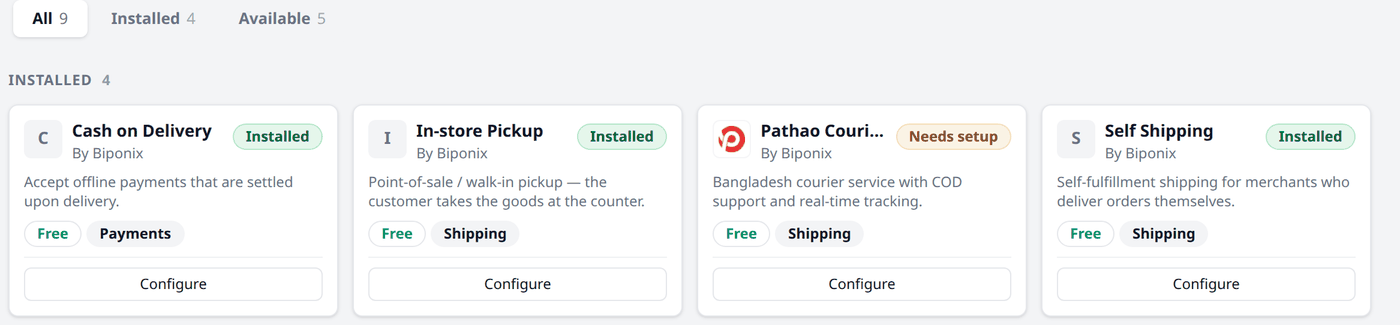
Install a payment app and a shipping app before you open. Together they are what let you take an order and then send it out.
- A payment app is how your customer pays. For example, installing Cash on Delivery lets them pay when the parcel reaches them.
- A shipping app is how the parcel travels. Install any of the courier apps (Pathao Courier, Steadfast Courier, etc) if a courier company carries your parcels. If you have your own delivery team, install Self Shipping.
Go to Apps in the menu, find each one, and press Install.
Where orders come from
| Where it came from | What it means |
|---|---|
| Storefront | A shopper placed it themselves on your storefront. |
| Back Office | You made it yourself, usually from a phone call or WhatsApp message. See Creating an order yourself. |
| POS | You sold it face to face at your counter. See POS. |
| Sales Funnel | A shopper placed it from a funnel/landing page you built. |
You will see one of these four labels on every order, so you always know where it came from.
Most shops only ever see Storefront and Back Office at first. The other two only appear once you have set them up, and neither is needed to start selling.
Checking for new orders
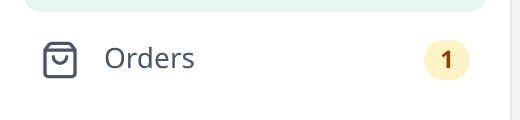
Biponix counts your waiting orders for you. A small badge appears on the Orders item in the menu when there are unconfirmed orders. This badge shows you how many orders need confirmation. The order list itself refreshes every minute while you have it open.