
Appearance
Pages
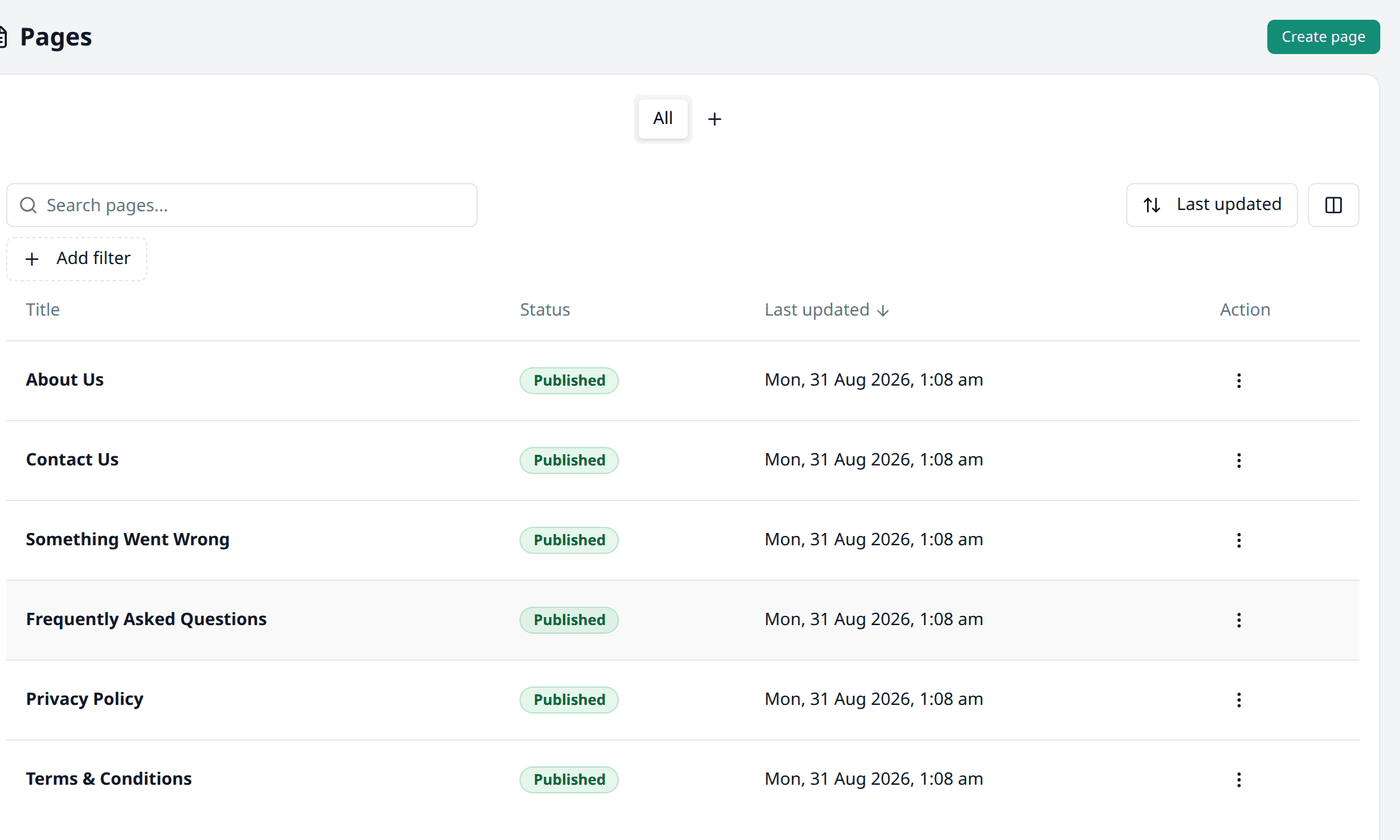
Pages is where you can add custom pages to your storefront — an About Us page, a Return Policy, anything your storefront does not already come with. Open Pages from the menu to see the pages in your shop.
The list
| Column | Description |
|---|---|
| Title | Press it to open that page's edit screen |
| Status | Its visibility status, Draft, Published, or Archived |
| Last updated | When you last changed it |
| Action | Edit opens its edit screen, Preview opens it on your storefront, or Delete removes it |
Search and filters
This list works the same way as every other list in your dashboard. Working with lists explains searching, filtering, sorting, columns and views in full.
Search helps you find a page by its title.
Pages only has one filter, Status — filter the list by Draft, Published, or Archived.
Writing a page
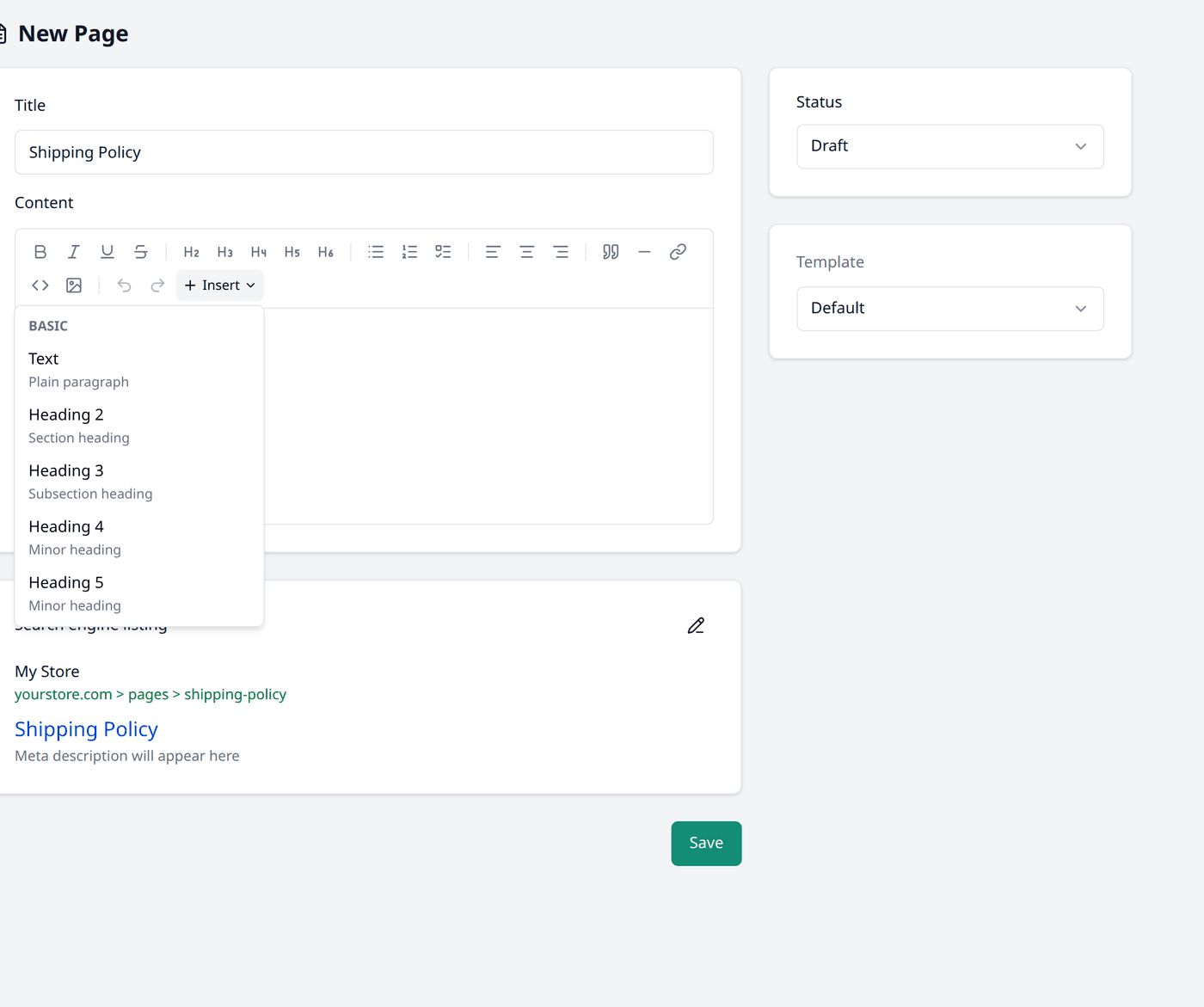
Press Create page, then fill the boxes:
- Title — what the page is called.
- Content — the page's content. Press Insert to add a heading, a list, a quote, a table, or a picture from your Media Library.
What each status means
Draft is saved but not visible to shoppers yet. Published is visible to shoppers. Archived is hidden, kept for reference. You choose one from the Status field.
If you choose Published, a Publish date field appears. Leave it empty to publish the page straight away, or pick a date and time to publish it later instead.
How your page will look
Under Template, pick which layout the page should use. A theme can offer more than one. You can build extra ones in the Theme editor, under its Pages section.
Search engine listing
Further down the form is Search engine listing — how this page looks in Google, and its slug.
Biponix fills it in from the title and content, so you can keep it as is. If you want to change it:
- Page title and Meta description are what Google shows.
- URL and handle is the slug. No two can be the same, so Biponix checks as you type and tells you whether it is Available.
Press Save when you are done.
Removing a page
Press the row's action menu, then Delete.
Deleting a page is permanent
There is no button to bring a deleted page back. If you want it back, you will need to recreate it.