
Appearance
Custom tracking scripts
Open Settings, then Analytics & tracking, then press Custom tracking scripts under Tracking tools to open this page.
A tracking script is a small piece of code that reports what shoppers do on your storefront to an outside service. Check whether the service you want already has its own app in Apps. If an app is available, install that instead. Use this page only for a service without one.
The list
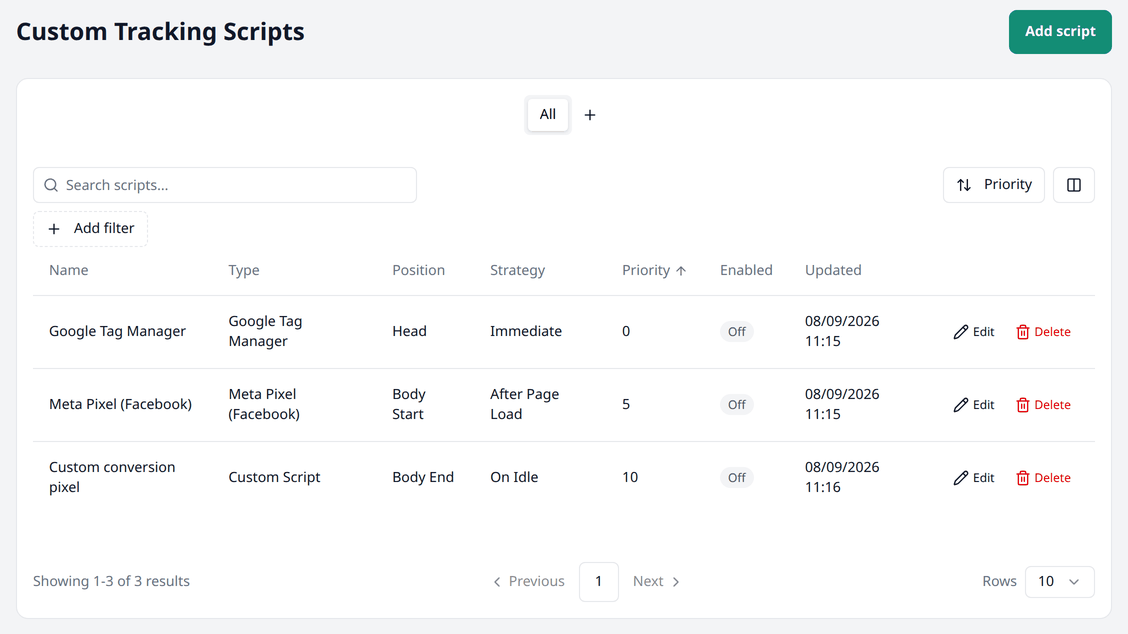
Left to right, the columns are:
- Name — what you named the script
- Type — which service it is for
- Position — where on the page it runs
- Strategy — when it runs
- Priority — the order it runs in, against your other scripts
- Enabled — On or Off
- Updated — when it was last updated
Search and filters
This list works the same way as every other list in your dashboard. Working with lists explains searching, filtering, sorting, columns and views in full.
Search lets you find a script by its name.
Here are the available filters for this screen:
- Type — filter the list by the service type, such as Google Tag Manager or Custom Script.
- Position — filter scripts by whether they are placed at Head, Body Start, or Body End.
- Enabled — filter by whether a script is Enabled or Disabled.
Adding a script
Press Add script.
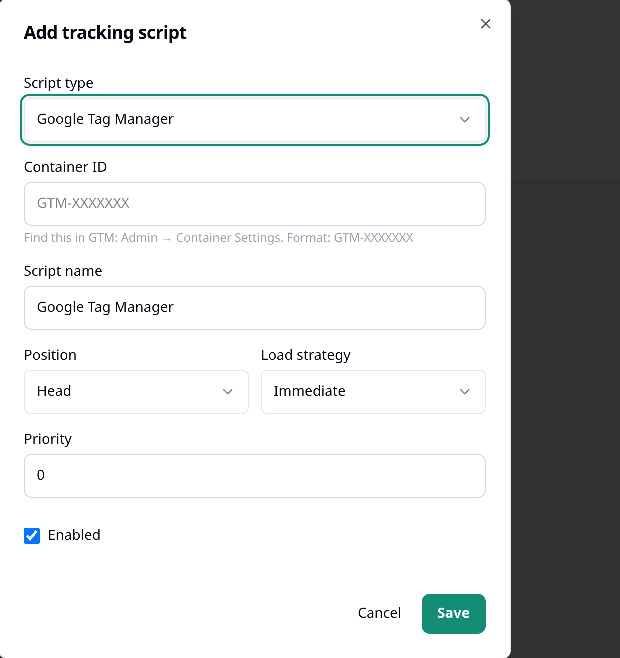
Choose what the script is for, under Script type:
- Google Tag Manager
- Meta Pixel (Facebook)
- Google Analytics 4
- Microsoft Clarity
- TikTok Pixel
- Custom Script — for code you already have from somewhere else
For the first five, Biponix asks for the code that the service needs — a Container ID, a Pixel ID, and so on. It also tells you exactly where to find it. For Custom Script, paste the code you were given instead, without the opening and closing <script> tags.
Script name is automatically filled; change it if you want to name it something else.
Two more choices decide how the script behaves:
- Position — where on the page it runs: Head (before the rest of the page loads), Body Start, or Body End (after everything else has loaded). If the place you got the code from does not say which to use, Head is the usual choice.
- Load strategy — when it runs: Immediate, After Page Load, or On Idle (once the browser is not busy with anything else). Immediate suits most tracking code; use one of the others only if the code's instructions ask for it.
Priority decides the order scripts run in when you have multiple of them — the lowest number runs first. Leave it at 0 unless you want to run one script before another.
Untick Enabled if you want to deactivate the script on your storefront. Press Save.
Managing your scripts
Press the Edit button beside a script to edit it, or the Delete button to delete it. Deleting removes the script from your storefront right away.