
Appearance
Categories
A category groups products of the same type — Sarees, Shoes, Kitchen. Shoppers use them to browse one part of your shop instead of scrolling through everything.
Add your categories first. Every product must be in one, so you cannot save a product until at least one category exists.
The categories list
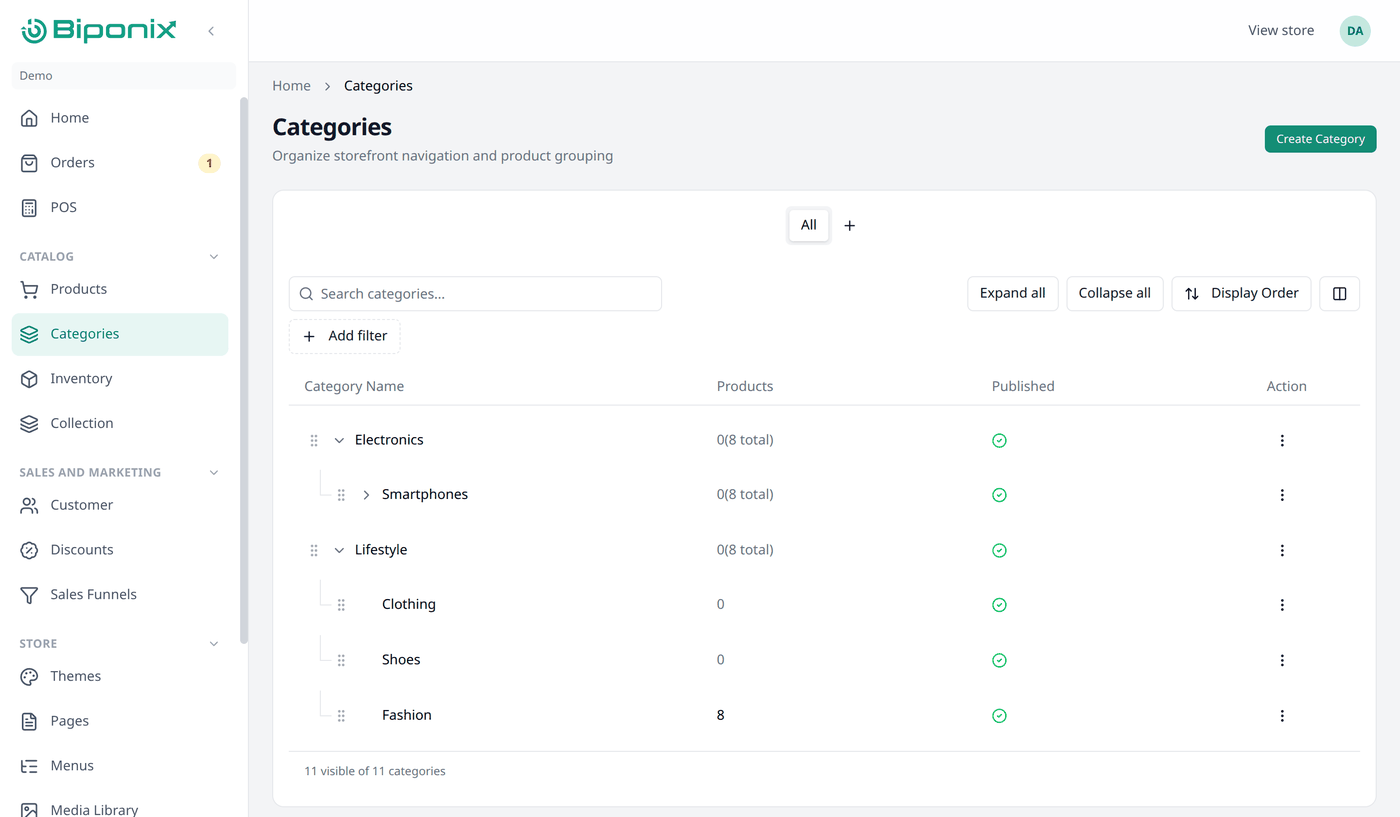
Sub-categories are nested under their parent. Parent categories have an arrow next to them which expands or collapses their children. Expand all and Collapse all, above the list, do the same for every category.
| Column | Description |
|---|---|
| Category Name | Press it to open that category's edit screen |
| Products | How many products it has. If it has sub-categories, the total count of their products is shown beside. The numbers link to their full product list |
| Published | Whether the category is live in your storefront |
| Action | Edit opens its edit screen, or Delete removes it, if it is empty |
Two more columns, Children (how many sub-categories it has) and Date Created, are hidden. Turn them on from the columns button.
Search and filters
This list works the same way as every other list in your dashboard. Working with lists explains searching, filtering, sorting, columns and views in full.
Search helps you find a category by its name or its handle.
Categories only has one filter, Published — filter the list by whether it is published or not.
Reordering categories
Drag a category by the handle (⋮⋮) beside its name to move it up or down among the other categories at the same level. The order you see is the Display Order for categories on your storefront.
Dragging only reorders siblings. To move a category under a different parent, open it and change its Parent category there.
Add a category
Open Categories from the menu and press Create Category.
| Field | What to put in it |
|---|---|
| Name | What shoppers see. Keep it short and plain — "Sarees", not "Our saree collection". |
| Parent category | Leave this as it is. If you are adding a sub-category, pick the parent category here. |
| Description | A line or two about what belongs here. Optional. |
| Publish | On means shoppers can see it. Off keeps it hidden while you work. |
| Image | One picture, if you want one. |
Categories can go four levels deep
A category can go inside another one — Shoes inside Clothing, for example. The inner one is called a sub-category. Four levels is the limit, and most shops never need more than two.
Search engine listing
Further down the form is Search engine listing — how this category looks in Google, and its slug.
Biponix fills it in from the name, so you can leave it alone. If you want to change it:
- Page title and Meta description are what Google shows.
- URL and handle is the slug. No two can be the same, so Biponix checks as you type and tells you whether it is Available.
Deleting a category
You can only delete an empty category. If anything is still in it, Biponix refuses and tells you why:
- If it has sub-categories, move or delete those first.
- If products are still in it, move them to another category first.
This is deliberate. It stops products quietly losing the category they need.
Pro tip
Start with fewer categories than you think you need. Three or four clear ones beat fifteen that shoppers have to read through, and you can always add more once you see what people actually look for.
Keep them for what a product is, not for a sale or a season. Anything temporary belongs in a collection.
What next
With a category in place, you can add your first product.