
Appearance
Checkout
Checkout is the last thing a customer does before their order reaches you: their name, where it goes, and the Place order button. This page decides what that step looks like.
Open Settings, then Checkout.
Checkout behaviour
Allow guest checkout lets people buy without creating an account. It is on when your store is created, and for most shops it should stay on.
Require login at checkout does the opposite: buyers must sign in before their order goes through. It is off to begin with. Turn it on only if you have a reason to know who every buyer is.
Pro tip
Leave guest checkout on. Asking a first-time buyer to make an account is one of the most common reasons a full basket is abandoned — they came to buy one thing, not to join something. You still get their name, phone number and address with the order.
Order notification channel is where your new-order alerts are sent. Choose Phone, Email, or Phone & Email.
Cart limits
Limit quantity per item caps how many of one product a single customer can add. It is on by default, capped at 10.
You can change Max quantity per item, or turn it off if you do not want any limit.
Order reassurance
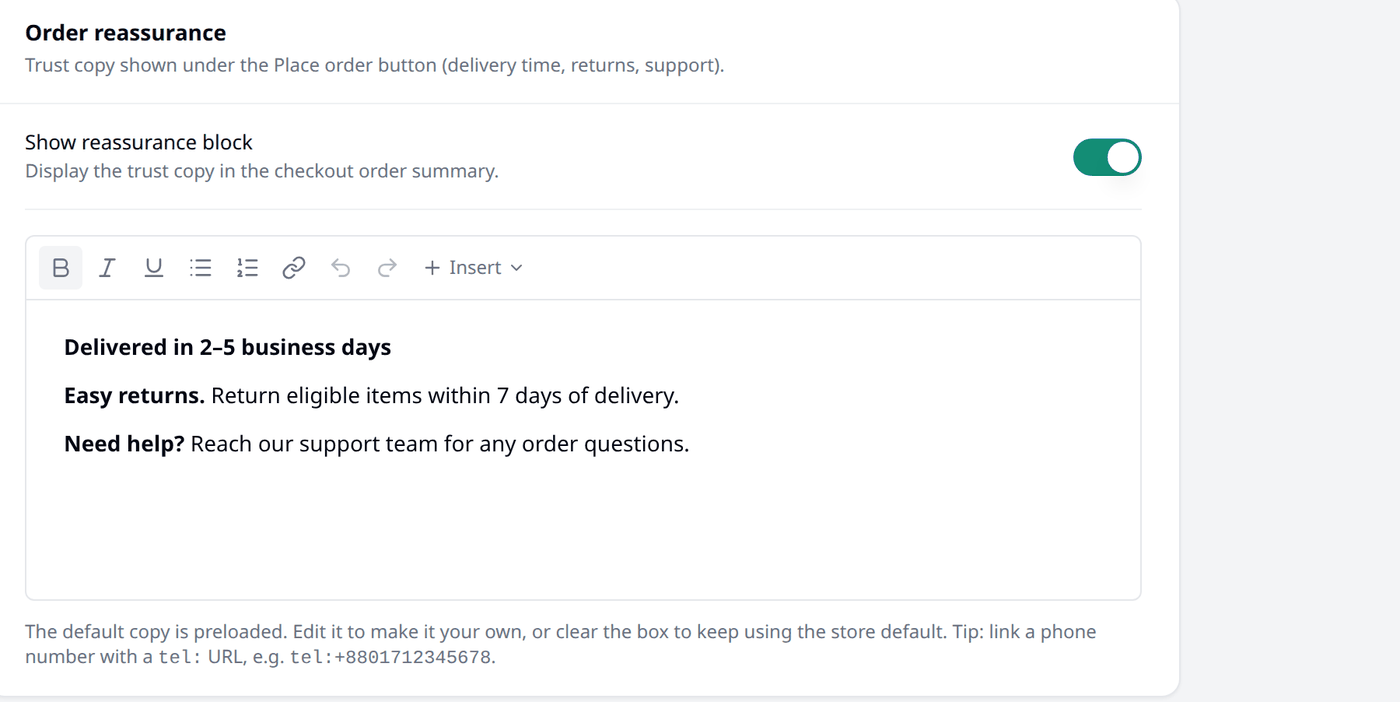
This text is shown under the Place order button on your storefront, and it is worth writing. A customer at that moment is deciding whether to trust you, and a few plain texts about delivery, returns or how to reach you settle that.
Show reassurance block is on by default. Keep the text Biponix provides if it fits your shop, or write your own — you can bold words, add a list, or add links.
Pro tip
Writing a phone number as tel:+8801712345678 instead of plain text makes it a tap-to-call link.
Keep it short and true. A promise you cannot keep costs you more than saying nothing.
Checkout fields
These are the details your customer fills in during checkout. They come in three groups — Contact, Shipping address and Extras — and each row shows whether it is Shown, Required or Hidden. Press the arrow at the end of a row to change it.
For each field you can:
- show or hide it
- require it, so the order cannot be placed without it
- change its label and its placeholder — the faint example text inside the box
Leave a label or placeholder empty to use the default wording.
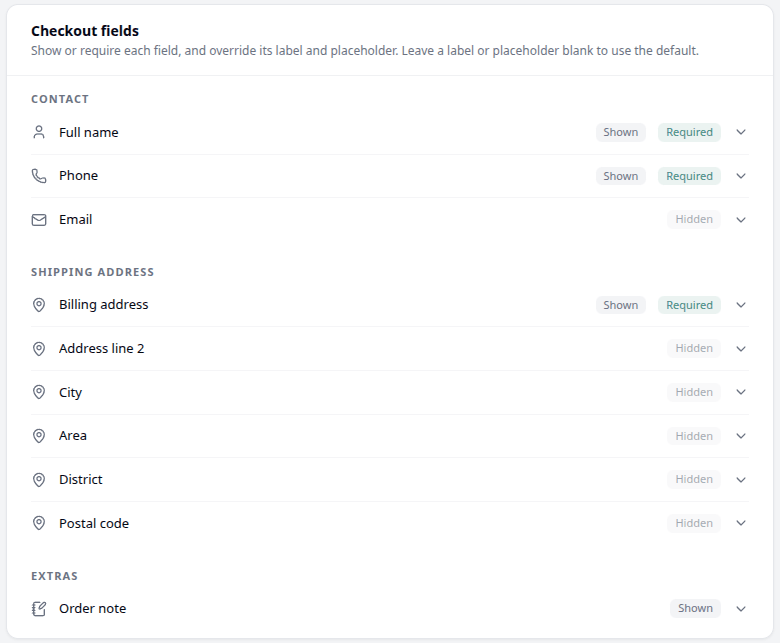
To begin with, Biponix asks for a full name, a phone number and an address, and leaves a box for an order note. The rest are hidden until you switch them on.
Ask for what you actually need to deliver the order. Every extra box is another chance for someone to give up.
Saving
Nothing changes until you press Save. Discard puts everything back.
What next
Last of all comes Notifications, the messages that go out when an order arrives.