
Appearance
Orders list
You now know everything that happens to an order — confirming it, shipping it, and recording payment against it. This page covers the order list you have already come across — finding the one you want, and acting on several at once.
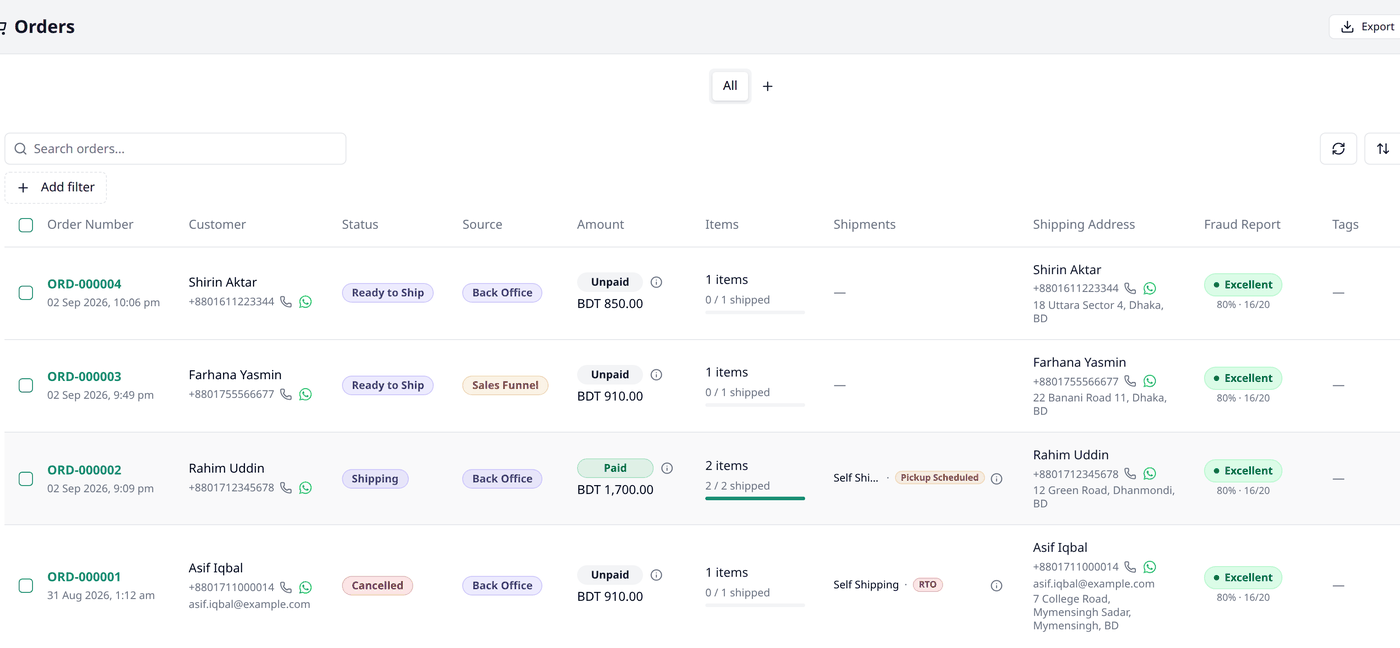
Columns
| Column | Description |
|---|---|
| Order Number | The unique code for the order |
| Customer | Who placed it |
| Status | Where it stands right now, such as Needs Confirmation or Completed |
| Source | Where the order was placed — Storefront, Back Office, POS, or Sales Funnel |
| Amount | The order total and its payment status. Press the ⓘ icon for details — subtotal, shipping, discount, paid, refunded and due amounts |
| Items | The order items and the quantity |
| Shipments | Parcels that have been sent |
| Shipping Address | Its destination |
| Fraud Report | A trust score built from the customer's delivery history with different couriers |
| Tags | Any labels you have added |
| Action | Covered below |
Two more columns, Currency and Payment Method, are hidden. If you want you can turn them on from the columns button.
Search and filters
This list works the same way as every other list in your dashboard. Working with lists explains searching, filtering, sorting, columns and views in full.
Here is a list of the available filters:
- Status — the order's status, such as Needs Confirmation or Completed.
- Payment Status — whether it is Unpaid, Partially Paid, Paid, Overpaid, Partially Refunded, or Refunded.
- Source — where the order was placed: Storefront, Back Office, POS, or Sales Funnel.
- Tags — any tags you have added.
- Include Archived — also shows orders you have archived.
- Order Date — a date range for when the order was placed.
- Product or variant — search by a product, variant, SKU or barcode to find every order containing it.
Search matches what was typed at checkout
The search box matches the order number and the delivery details a customer submitted at checkout — their name, email and phone.
Shipments at a glance
You can view shipment info without opening the order. Press the small icon beside the shipment you want for its tracking codes and item counts. No need to open the order.
Action
Press the menu icon at the end of a row for quick actions — the same ones you would find on the order form:
- View
- Confirm Order
- Edit Items, its note, tags or shipping address
- Cancel Order or Reopen
- Create Shipment
- Record Payment or Record Refund
- Archive or Unarchive
- Print Invoice
Only what applies to that order's current status is available. Order processing, Shipment, and Payment cover what each of these does.
Bulk actions
You can perform bulk actions on multiple orders. Tick rows the way Working with lists describes, then press Bulk actions. Now you can:
- Print Shipping Label — pick a size. Biponix prints a label for every order you selected.
- Print Receipts or Print POS Receipts — the same, for receipts.
- Edit tags — add or remove tags on every selected order at once.
- Mark as paid — records a payment for each order's amount due. Afterward, a results dialog shows which orders were paid and which were skipped.
Exporting your orders
Press Export and choose Orders, Payment Transactions, or Product Sales Report, each as Excel or CSV. This downloads the records with whatever search and filters are currently applied.