
Appearance
Sales Funnels
A Sales funnel is a page you build to sell a single product, separate from your main storefront. A shopper can pick a variant, or choose several as a cart, depending on the funnel's configuration. Open Sales Funnels from the menu to see the funnels in your shop.
The list
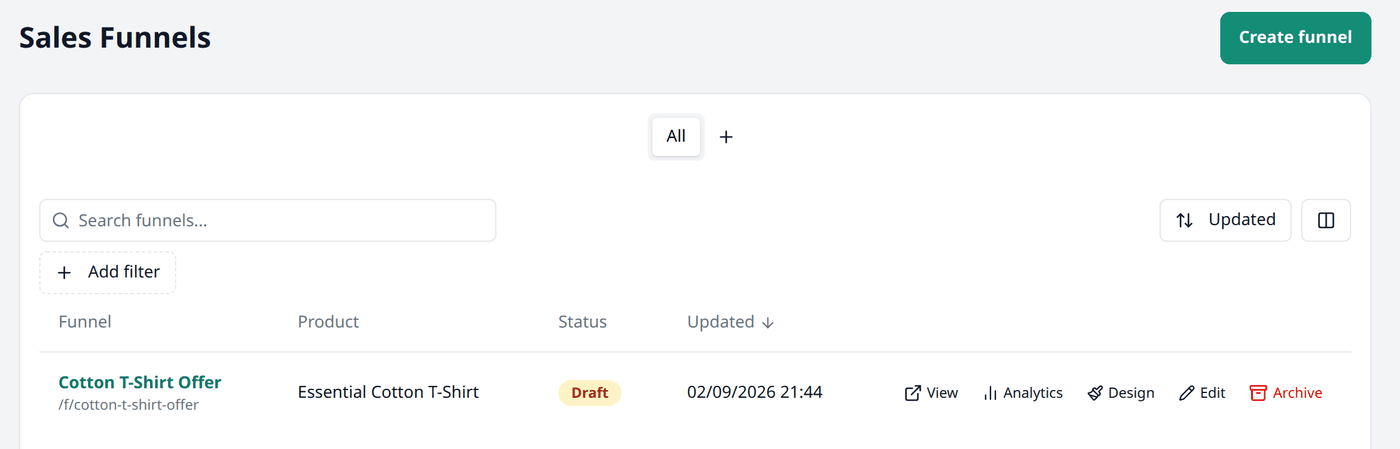
| Column | Description |
|---|---|
| Funnel | Name of the funnel. Pressing it opens the funnel's edit screen. Its URL is shown below |
| Product | The product it sells |
| Status | Its active status — Draft, Active, or Archived |
| Updated | When you last changed it |
Each row has its own actions:
- View — open the funnel's live page.
- Analytics — see how it is performing, and get a shareable link.
- Design — open its page in the theme editor.
- Edit — change its configuration.
- Archive — take it out of use.
Search and filters
This list works the same way as every other list in your dashboard. Working with lists explains searching, filtering, sorting, columns and views in full.
The search box finds a funnel by its name or its URL slug.
Sales Funnels only has one filter, Status — filter the list by Draft, Active, or Archived.
Creating a funnel
Press Create funnel, then fill the boxes:
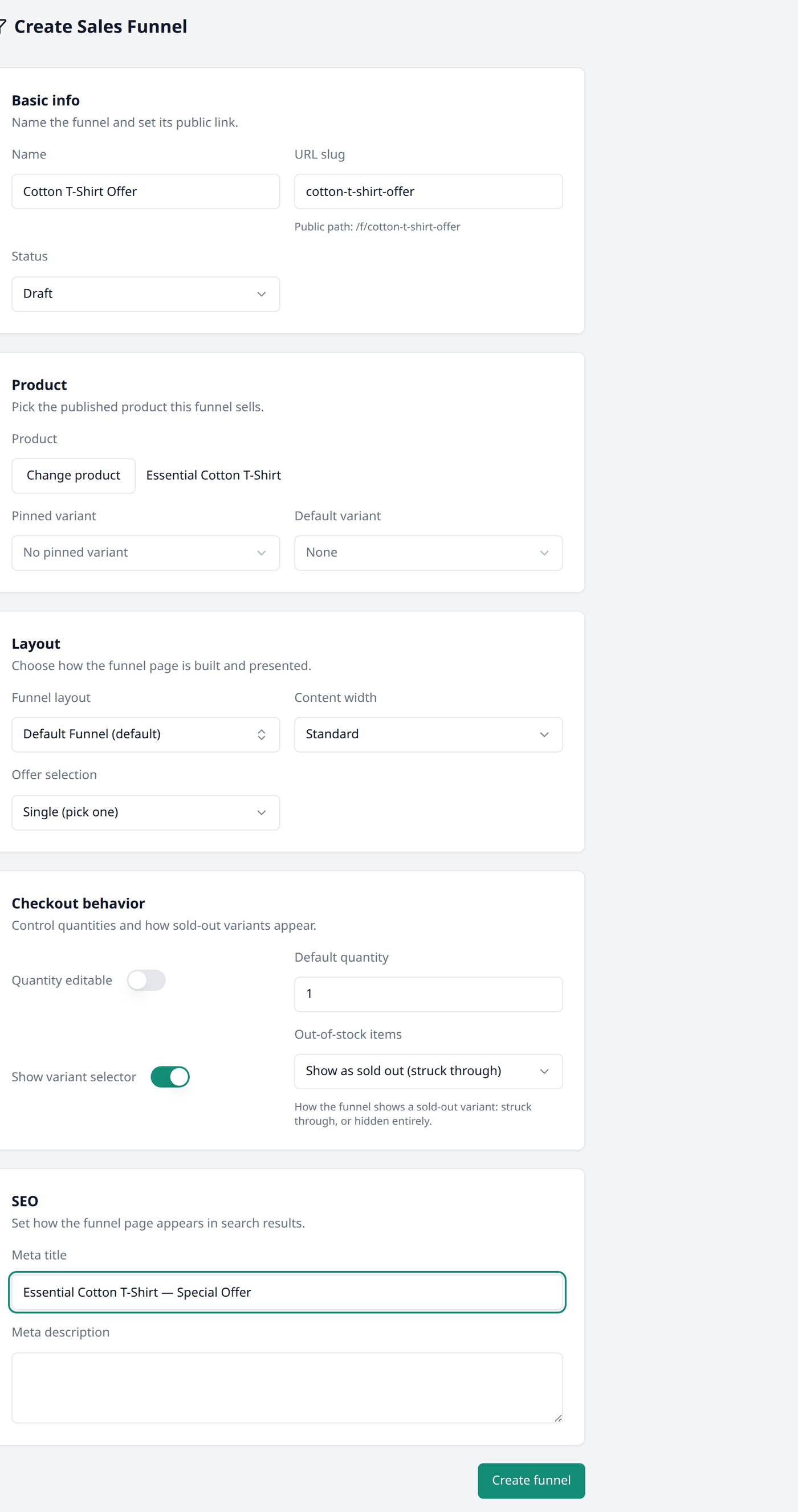
Basic info
- Name
- URL slug — suggested from the name. You can change it. This becomes the funnel's public address.
Product
- Product — the product this funnel will sell.
- Pinned variant — select one if you want the funnel to sell that exact variant.
- Default variant — which variant is chosen by default, when none is pinned.
Layout
- Funnel layout — the page template it is built from.
- Content width — Narrow, Standard, or Wide.
- Offer selection — Single (pick one), or Multi (cart of variants) to let a shopper add more than one variant.
Checkout behavior
- Quantity editable — let a shopper change how many they are buying.
- Default quantity — how many are chosen by default.
- Show variant selector — let a shopper pick the variant themselves, on the page.
- Out-of-stock items — shown struck through, or hidden completely.
SEO
Meta title and Meta description are what Google shows in search results.
Press Create funnel to save it.
Designing the page
Press Design on a funnel to open the funnel page in the same editor that you use to design your storefront.
Sharing a funnel
A funnel is its own page, separate from your storefront. It is reachable only by its own link. Funnel Analytics covers this in full.
Archiving
Press Archive from a funnel's row action to take it out of use.
Archiving a funnel cannot be undone
Unlike a product or an order, a funnel has no Unarchive action. Once archived, its page stops working and its configurations can never be changed again.