
Appearance
Your first day
Today is not the day you build your whole shop. Today you get in, look around, and learn where things are. That is enough for one sitting.
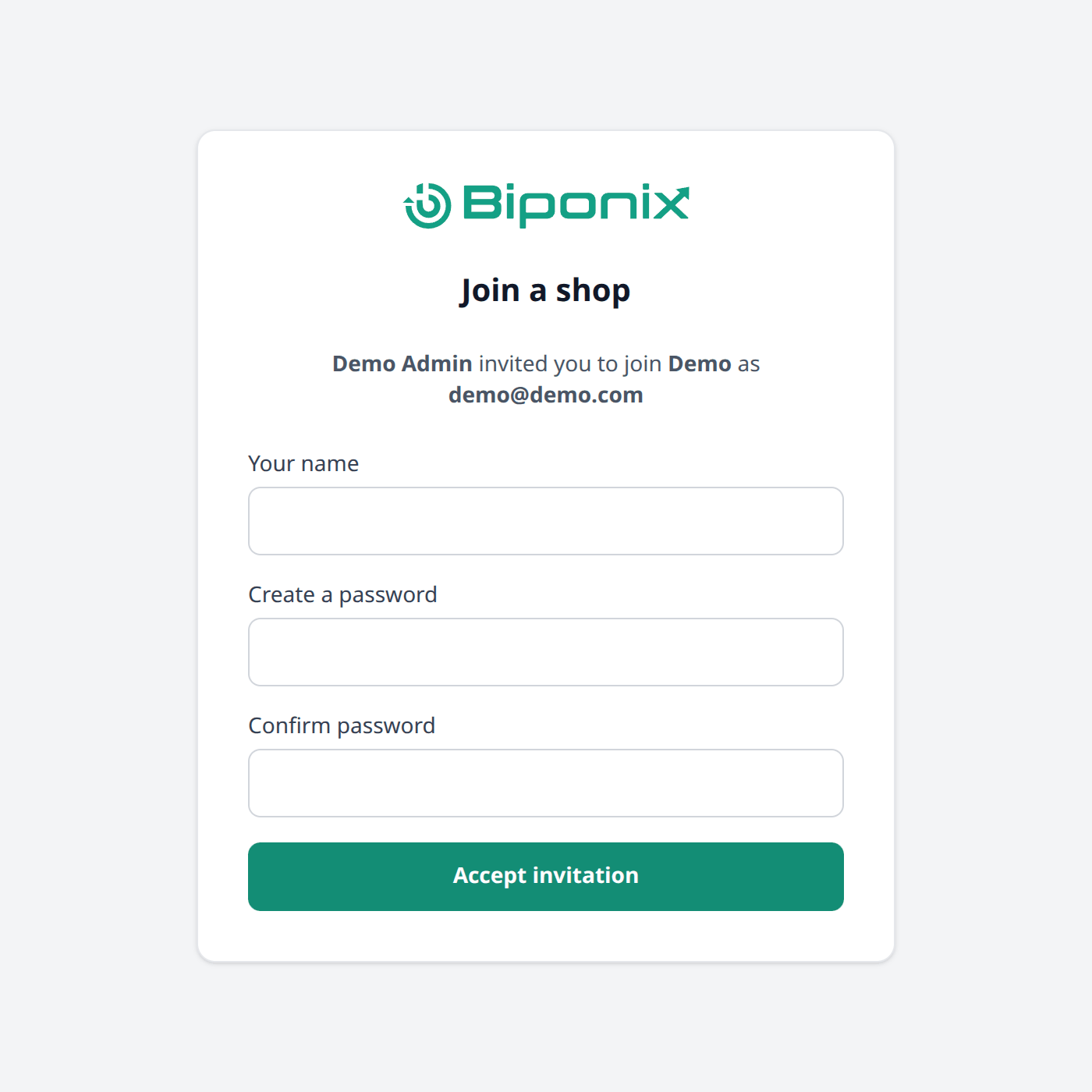
Accept your invitation
Biponix sends you an invitation email. Open it and click the link inside.
You will see a page called Join a shop, showing who invited you and which shop it is for. Fill in:
- Your name — this is what your team sees.
- Create a password, then Confirm password — the same one twice.
Then press Accept invitation.
Nobody else picks your password, so choose one you will remember. If the link no longer works, it has passed its seven days — ask whoever invited you to send a new one.
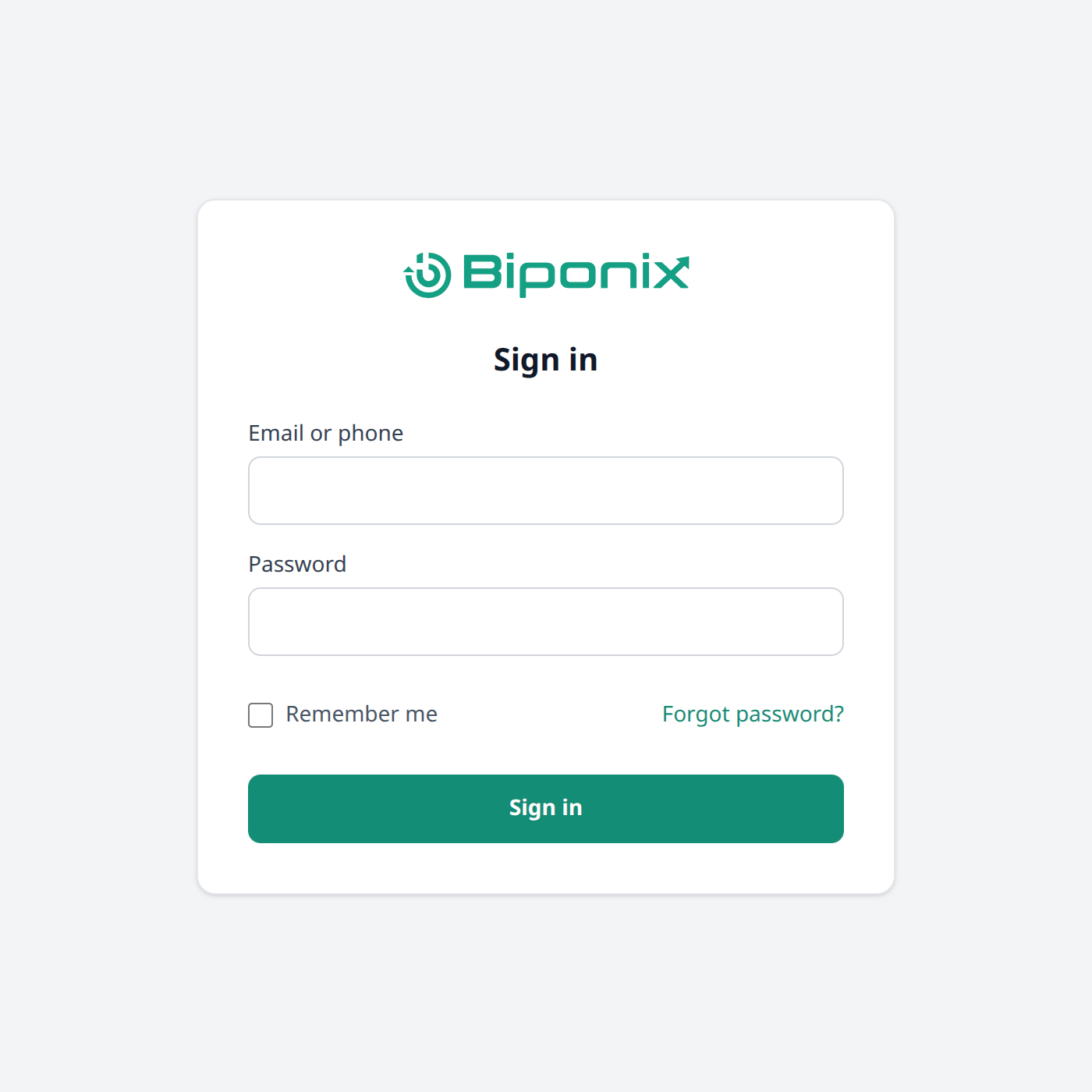
Sign in
From now on you sign in with your password and either your email address or your phone number.
Tick Remember me if this is your own computer. And if the password ever slips your mind, Forgot password? lets you set a new one yourself.
Choose your shop
If you help run more than one shop, a screen called Choose a shop appears after you sign in. Pick the one you want to work on.
Look around
Take a moment before you change anything. There are three parts of the screen worth knowing.
- The menu on the left. Your shop's name sits at the top, with everything else grouped below it. The small arrow next to the logo folds the menu away when you want more room.
- View store, at the top right. This opens your shop in a new tab, exactly as a customer sees it. Keep that tab open — it is the quickest way to check your work.
- Your initials, in the circle at the far right. That is your own menu, holding your Profile, a switch between a light and a dark screen, and Sign out.
How saving works
Your changes are not kept until you press Save. If you change your mind, Discard puts things back.
In Settings, Biponix also asks before you leave a page with something still unsaved, so you will not lose your work by accident.
Leave these for later
You do not need Apps, Sales Funnels or Analytics & tracking today. They are useful later, and skipping them now costs you nothing.
What next
Read Before you begin and gather the few things listed there. After that, you are ready to set your shop up properly.