
Appearance
Themes
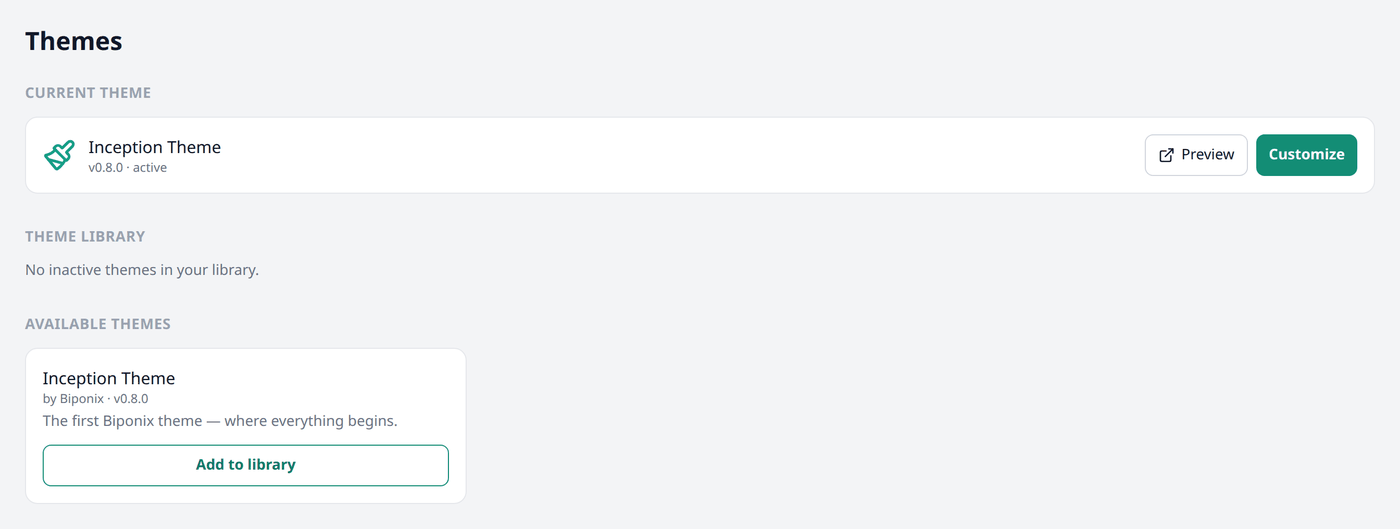
A theme is the design and behaviour of your storefront — how it is laid out, how it looks, and how it responds as a shopper uses it. It gives you a starting layout for your storefront, from your home page to a single product, which you can then rearrange yourself. Open Themes from the menu.
Your themes
Current theme is the one active on your storefront right now. Theme library holds every other theme you have added — kept ready, but not active.
Adding a theme
Under Available themes, press Add to library on any theme you like. This does not change anything on your storefront — the theme is just added to your library, ready for you to set up.
Editing a theme
Press Customize on any theme that you have added to open it in the editor. Theme editor covers this in full.
Switching themes
Press Publish on a theme in your library to make it active. Only one theme is active at a time.
Managing your library
- Press the pencil icon to rename a theme.
- Press the copy icon to duplicate one, keeping everything you have customized.
- Press the trash icon to remove a theme from your library.