
Appearance
Shipping & delivery
There are two separate jobs on this page:
- Choose how orders reach customers — install the app that matches the way you work.
- Set what delivery costs — add the delivery choices your customers pick from.
Do them in that order. The second one is quick; the first depends on how you deliver.
1. Choose how orders reach customers
Open Settings, then Shipping & delivery. Find Courier providers there — it lists the delivery apps you have installed, empty at the beginning. Press Browse more apps to install one, or open Apps from the menu instead. When done, come back to Shipping & delivery. The installed apps will show up under Courier providers. Press Manage to open the app's settings. Some of them take far more setting up than others.
| App | Use it when | What it needs from you |
|---|---|---|
| In-store Pickup | Customers collect from your shop | Nothing at all |
| Self Shipping | You deliver orders yourself | Almost nothing — just a name for it, if you want one |
| Pathao Courier | Pathao carries your parcels | A Pathao account, and its credentials |
| Steadfast Courier | Steadfast carries your parcels | A Steadfast account, and its credentials |
If you deliver your own orders, or customers collect from you, this part is easy — install the app and you are finished.
Adding an app
Apps are the extra services your shop connects to, such as ways to take payment or delivery companies. Go to Apps in the menu, find the one you want, and press Install. Some apps need a few details before they work — those show Needs setup, and you add the details by pressing Configure.
If you are using Pathao or Steadfast
You need an account with the delivery company you picked. If you do not have one yet, open it first. Biponix does not create one for you, and you cannot finish the setup without it.
Once you have the account, you copy a few details from the delivery company's own website into Biponix, and one value back the other way. Each app has its own page in this guide with the exact steps.
Pro tip
Not ready to deal with a courier account yet? Install Self Shipping and open your shop anyway. You can add Pathao or Steadfast later without changing anything else, so there is no need to stay closed while you wait for paperwork.
2. Set what delivery costs
Open Settings, then Shipping & delivery. The top card is Shipping rates, and these are the delivery choices your customers pick from when they order.
Press Add Rate and give each one:
- a Shipping Rate Name, up to 50 characters — this is what customers read, so make it obvious: "Inside Dhaka", "Outside Dhaka", "Pickup from shop"
- a Shipping Rate Price — or mark it Free
The … button at the end of a row lets you edit or delete it.
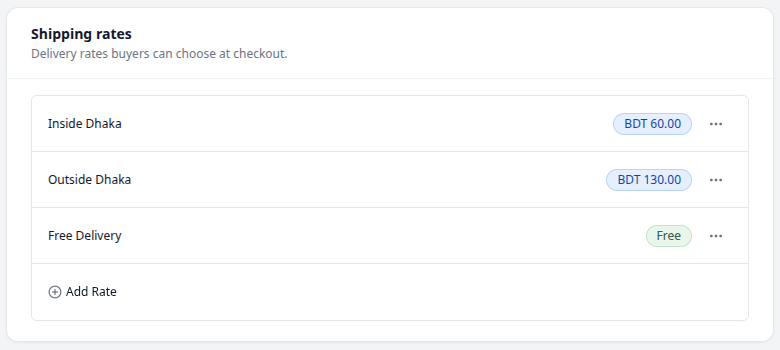
You can have up to 10 rates
Ten is the maximum. Most shops need two or three.
How the two fit together
This surprises people, so it is worth saying plainly: a rate is only a name and a price. It is not tied to a delivery company.
So "Inside Dhaka" does not tell Biponix to use any particular courier. When an order comes in and you are ready to send it, you choose the courier then, on the order itself. That is covered with the rest of your order work later in this guide.
What next
Customers can pay you, and their orders can reach them. Next comes Checkout, the last step they go through when they buy.