
Appearance
Inventory
Stock goes wrong. A parcel is dropped, a count was off, three shirts sold at the counter and nobody wrote it down. Inventory is the screen where you put the numbers right, for everything you sell, without opening a product at all.
Open Inventory from the menu.
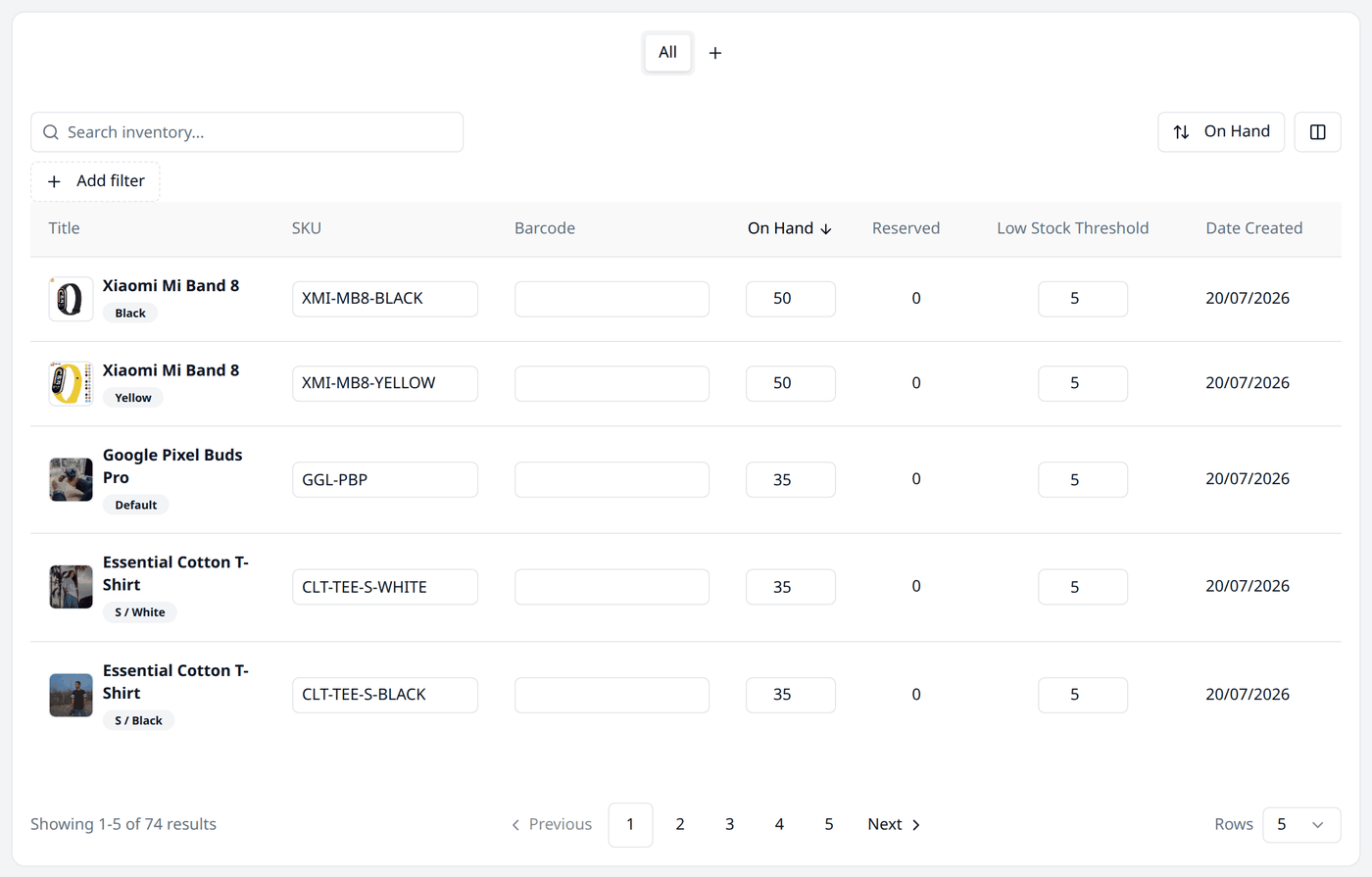
One row for each variant
This screen lists variants, not products. A t-shirt that comes in four sizes and three colours fills twelve rows here, because each of those twelve is counted separately.
The small grey badge under the product name tells you which one you are looking at — S / White, S / Black, and so on. A product with no variants gets one row, badged Default.
Seventy-four rows for sixteen products is normal
The number at the bottom of the screen looks large, and that is normal. Most products have variants, and every variant is counted on its own.
The three number columns
| Column | What it means |
|---|---|
| On Hand | How many you actually have. What you would find if you counted the shelf. |
| Reserved | How many are promised to orders that have not been shipped yet. |
| Low Stock Threshold | The stock count you consider as running low for this item. |
What a shopper can actually buy is On Hand minus Reserved. Five on the shelf with two waiting to be packed means three are available to sell.
Reserved changes on its own as orders come in and go out.
Updating a row
Type straight into the boxes. There is no separate edit screen or popup window to open first.
The moment you change anything, Save and Discard appear at the top of the page.
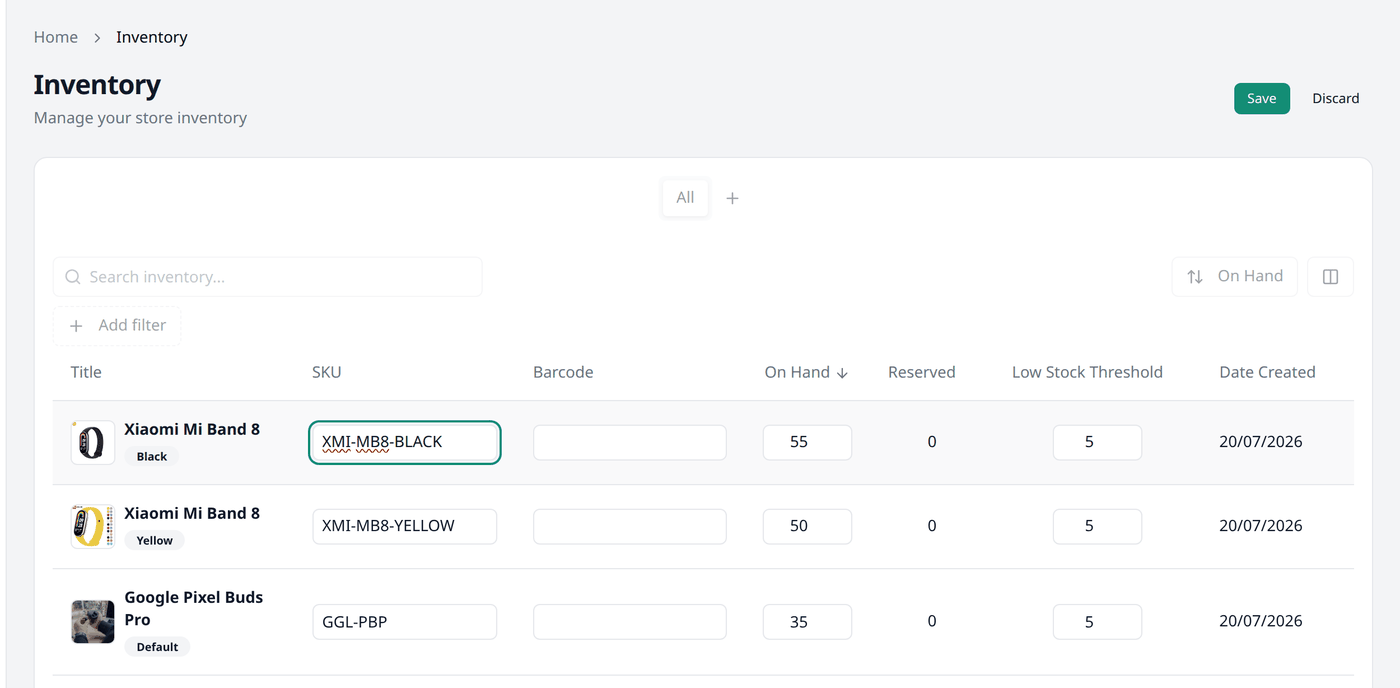
- Save keeps every change you have made on this page.
- Discard throws them all away and puts everything back as it was.
You type the new total in On Hand, not the change
Putting 55 in the On Hand box means you now have fifty-five of this item, not fifty-five more. To add five to fifty, type 55 yourself.
Why the rest of the screen stops working
While anything is unsaved, the search box, the filters, the sort button and the page numbers all go pale and stop working. Hover over them and Biponix tells you why: Save or discard changes before continuing.
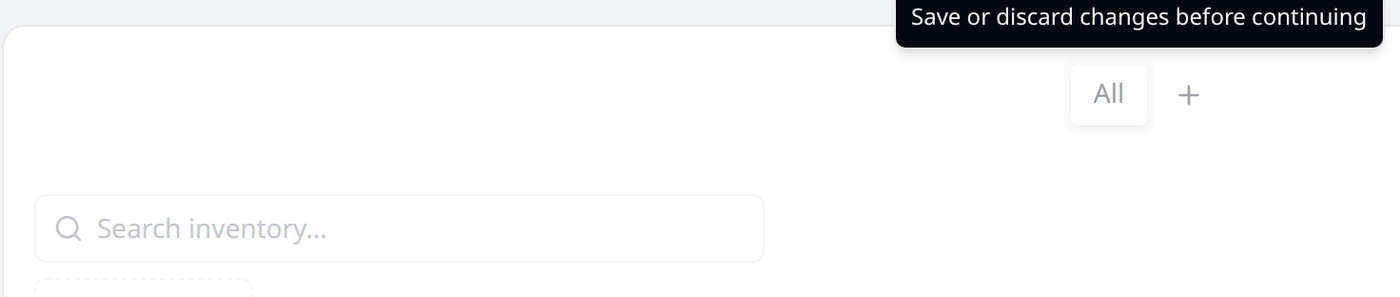
Nothing is broken. Your changes only live on the page you are looking at, so moving to another page or updating the list through filters, search or any other way would lose them. Press Save or Discard and the rest of the screen works again.
Finding the row you want
With seventy-four rows, scrolling to find one item takes too long.
The search box matches the beginning of a product name, a SKU or a barcode.
Search only matches the start
Searching "TEE" will not find "CLT-TEE-S-WHITE", because the SKU does not begin with those letters. Start from the beginning — "CLT" finds it.
Add filter gives you four filtering options, and all of them are a kind of range: On Hand, Reserved, Low Stock Threshold and Date Created. Each takes a smallest and a largest value.
Filtering On Hand with a maximum of 5 is the quickest way to see what is running out.
Pro tip
Set that filter once, then save it as a view called Running low. After that, the running low list is just one press away, every morning. Working with lists shows you how.
Low Stock Threshold
This is your own mark for "low stock" on each item. It starts at 5 and you can change it per row.
Checking is up to you. Nothing arrives to tell you an item has reached its mark, so the On Hand filter above is how you find what is running out.
What moves stock without you
Most changes happen on their own:
- A customer orders. Reserved goes up. On Hand does not move, because the item is still in your shop.
- The parcel goes to the courier. On Hand and Reserved both go down.
- An order is cancelled. Reserved goes back down and the item is free to sell again.
- You sell at the counter with POS. On Hand goes down straight away.
What next
Collection is next: putting products together into groups you choose yourself.