
Appearance
Orders
An order is a customer's request to buy something from you. It carries what they want, how much they owe, and where to send it.
Orders is the screen listing every one of them. Whenever you need to check on a sale, this is where you look.
Open Orders from the menu. A small badge on the menu item shows how many new orders you have.
What makes up an order
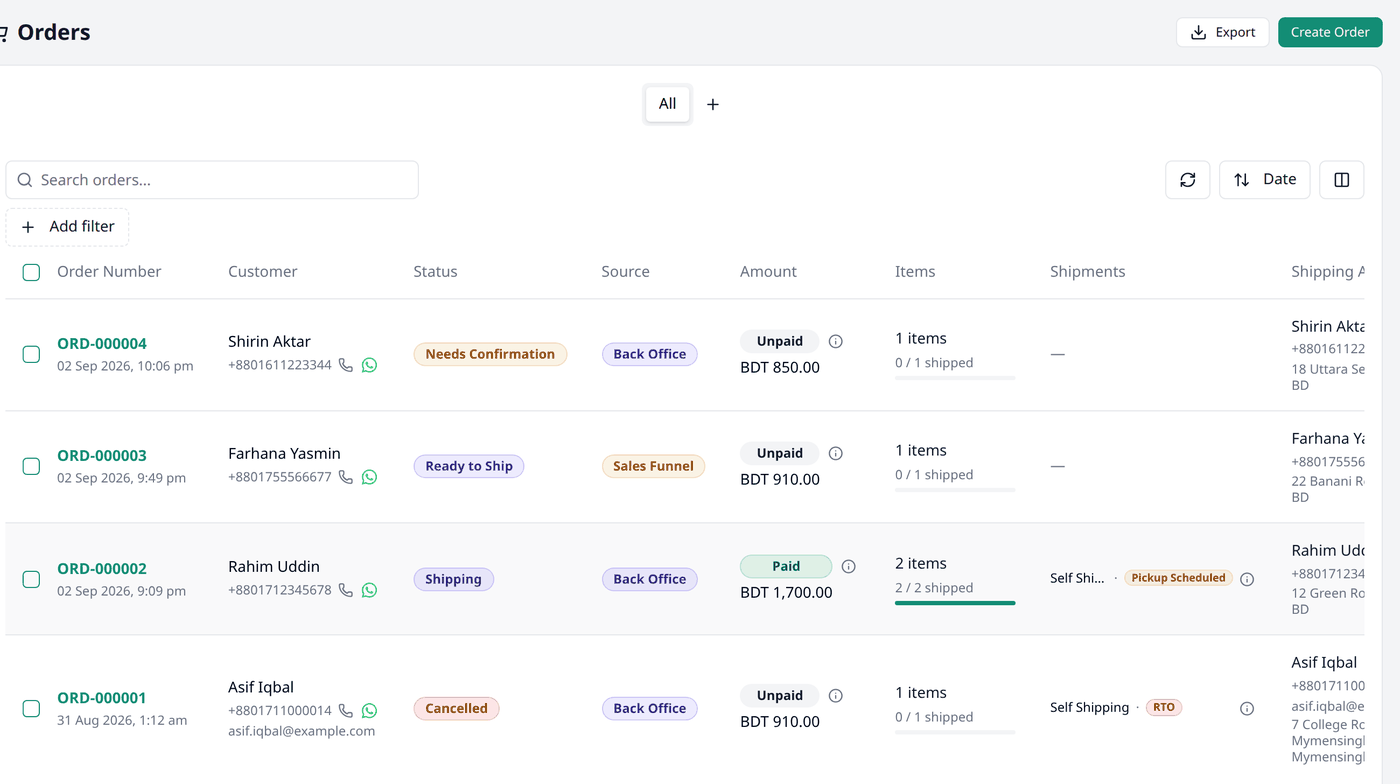
Every order carries this information:
- Order number — the unique code Biponix gives it
- Customer — who placed it
- Status — where it stands right now, such as Needs Confirmation or Completed
- Source — where it was placed
- Total — the cost
- Items — what is being bought, and how many
- Shipments — the parcels sent
- Shipping address — its destination
- Tags — any labels you have added
- Fraud Report — when your shop has one, a score built from this customer's delivery history with different couriers
All of this is laid out as columns, on the Orders screen.
What can be done with an order
There is a lot you can do with an order. Here is some of it:
- Record a payment received against an order
- Record a refund given against an order
- Create a shipment for a courier company or your delivery team
- Print a receipt or a shipping label
- Cancel the order
- Resolve a return, deciding what happens to a parcel that was returned
- Add tags to it for your own tracking
- Export a copy of your orders
An order's lifecycle
When an order is placed, it is set to Needs Confirmation.
After you confirm it, the order starts its actual journey — the status now reads Ready to Ship.
Next you create a shipment, for a courier or your own delivery team, and the status reads Shipping.
From there, most orders end at Completed. Along the way, one can also become Partially Delivered, run into a Delivery Issue, or be Cancelled.
What comes next
This page covers what an order is — what it is made of, what can be done with it, and the shape of its life. The rest of Order management is about turning each of those into practice.